ShardX Launcher
Установка ShardX Launcher, настройка прокси и запуск первого профиля

ShardX Launcher распространяется по лицензии MIT как бесплатный инструмент для личного использования. Программа поставляется «как есть». Мы регулярно выпускаем обновления, но поддержку в лайв-чате не оказываем - при серьёзных проблемах создайте баг-репорт на GitHub.
Системные требования
Windows
| Компонент | Минимум | Рекомендуется |
|---|---|---|
| ОС | Windows 10 22H2 или Windows 11, 64-бит | Windows 11 64-бит |
| Архитектура | x64 / x86_64 | x64 |
| Процессор | Двухъядерный 64-бит, поддержка SSE3 | Четырёхъядерный и выше |
| ОЗУ | 4 ГБ | 8 ГБ (16 ГБ при работе с множеством профилей) |
| Место на диске | 1 ГБ | 5 ГБ+ |
| Среда выполнения | Microsoft Edge WebView2 | - |
macOS
| Компонент | Минимум | Рекомендуется |
|---|---|---|
| ОС | macOS 11 Big Sur или новее | Последняя стабильная версия |
| Процессор | Apple Silicon M1 или новее | Apple M2 или новее |
| ОЗУ | 4 ГБ | 8 ГБ и более |
| Место на диске | 1 ГБ | 5 ГБ+ |
Текущая сборка собрана под aarch64-apple-darwin. Mac на Intel не поддерживается.
Установка на Windows
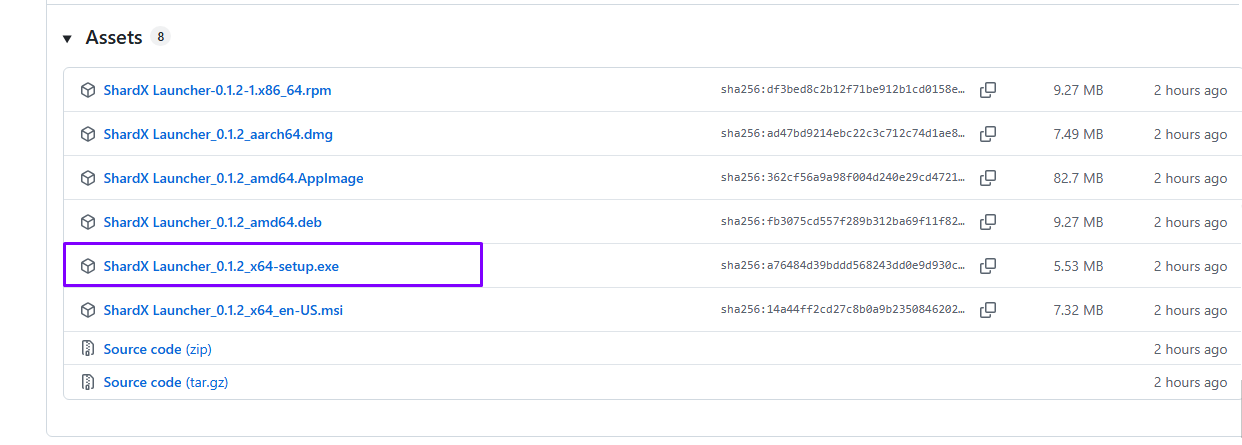
Скачайте последнюю версию:
github.comhttps://github.com/ProxyShard/ShardBrowser/releases/latestВ разделе Assets выберите файл .exe или .msi.
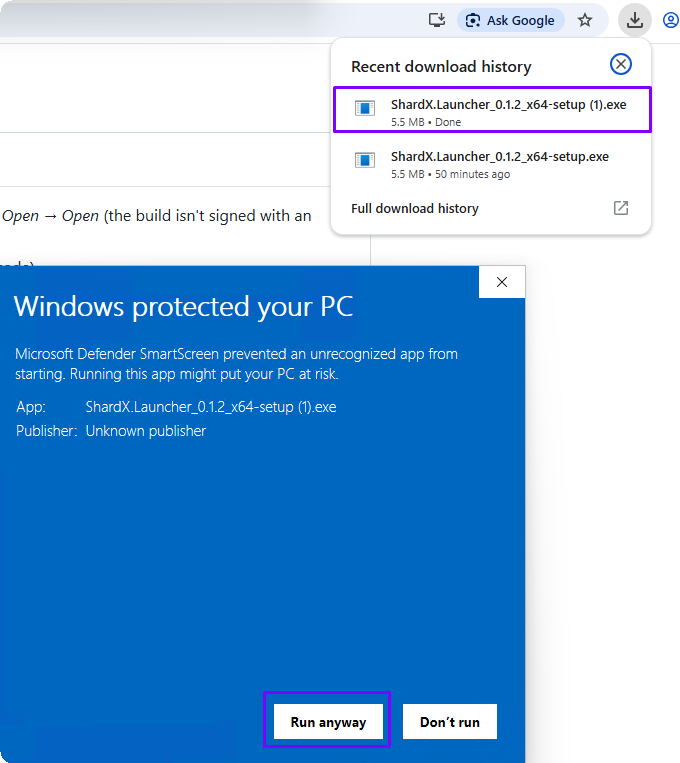
Запустите скачанный файл. Windows SmartScreen может показать предупреждение - нажмите Подробнее, затем Выполнить в любом случае.
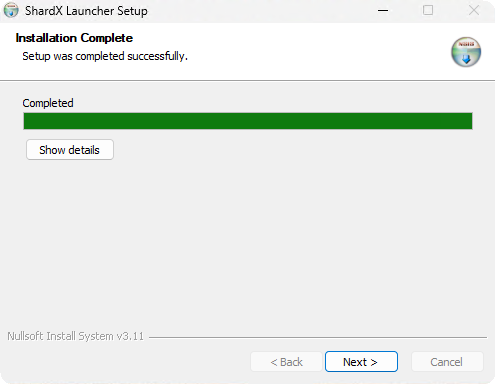
Установщик завершит работу за несколько секунд.
Установка на macOS
Скачайте последнюю версию:
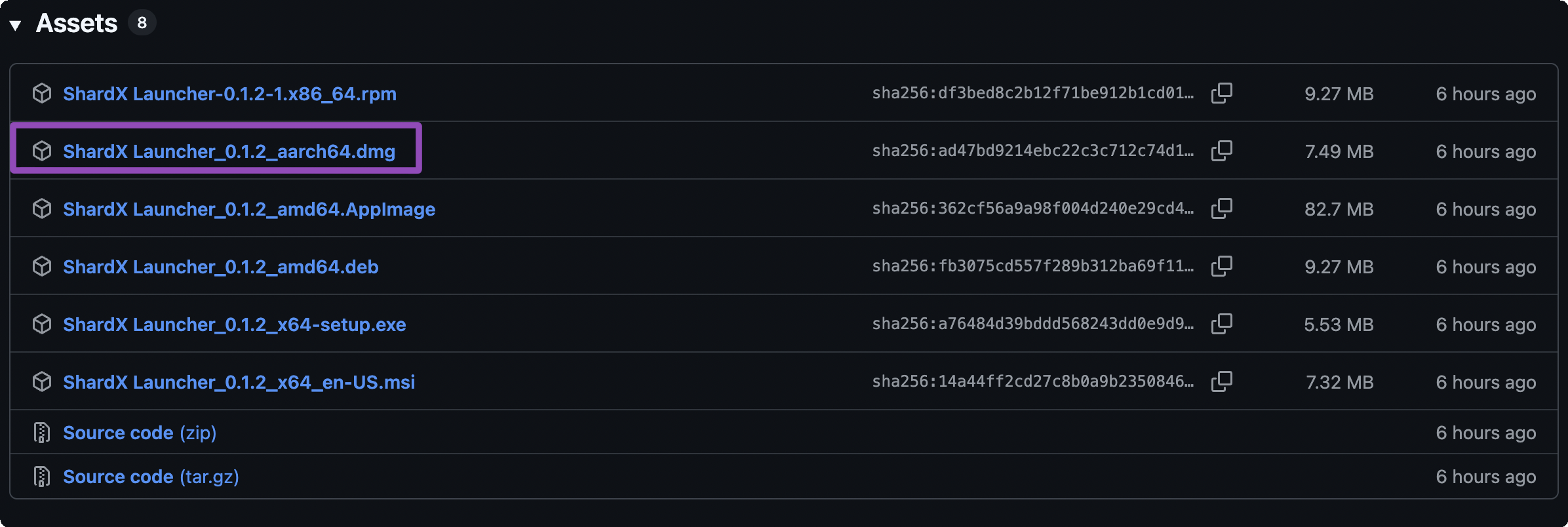
github.comhttps://github.com/ProxyShard/ShardBrowser/releases/latestВ разделе Assets выберите файл aarch64.dmg.
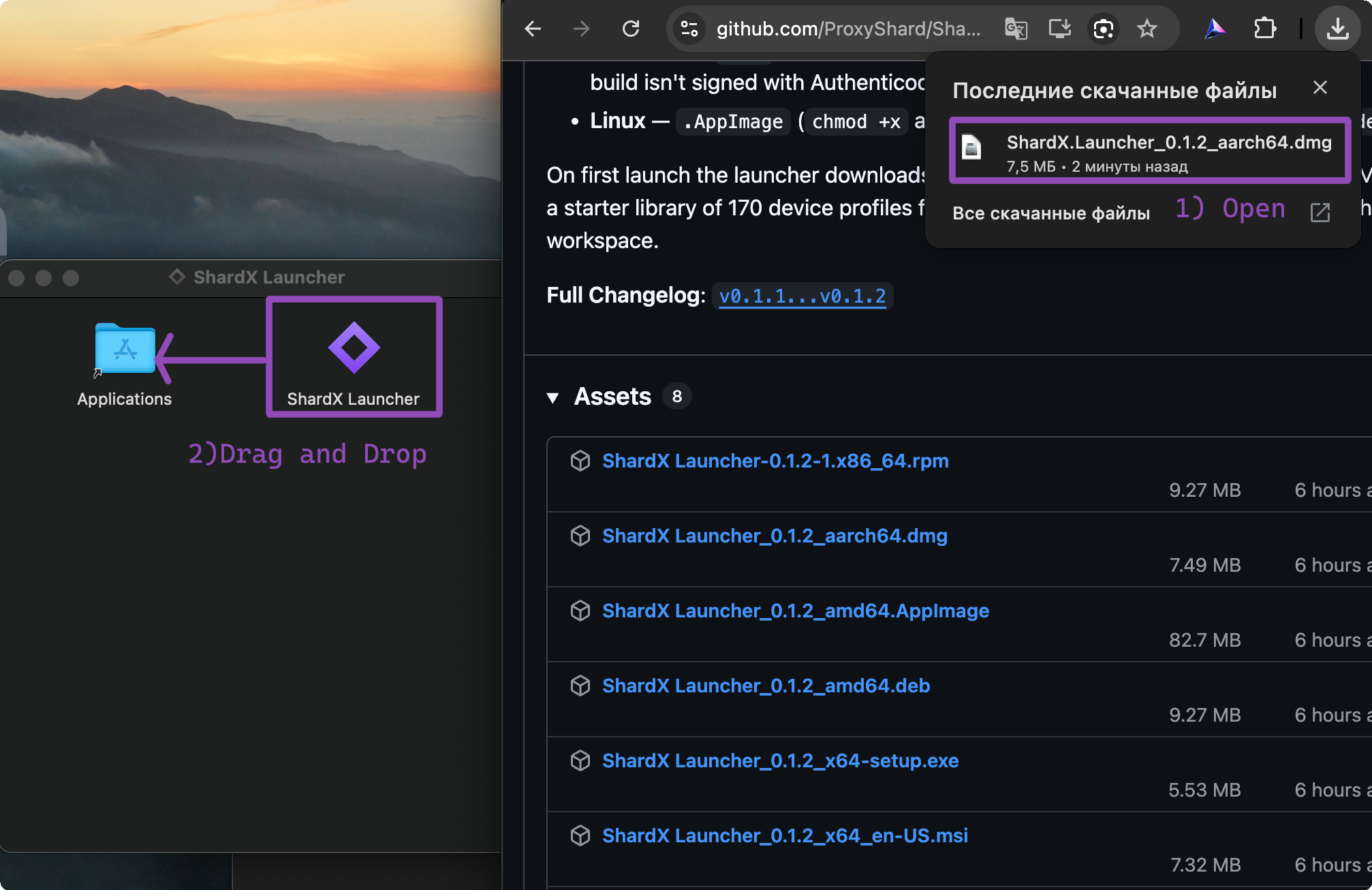
Откройте скачанный .dmg и перетащите ShardX Launcher в папку Applications.
Снятие блокировки Gatekeeper
Этот шаг обязателен. macOS блокирует все неподписанные приложения - без него приложение не откроется.
Откройте Терминал одним из двух способов:
- Spotlight: нажмите
⌘ + Пробел, введитеterminal, выберите приложение
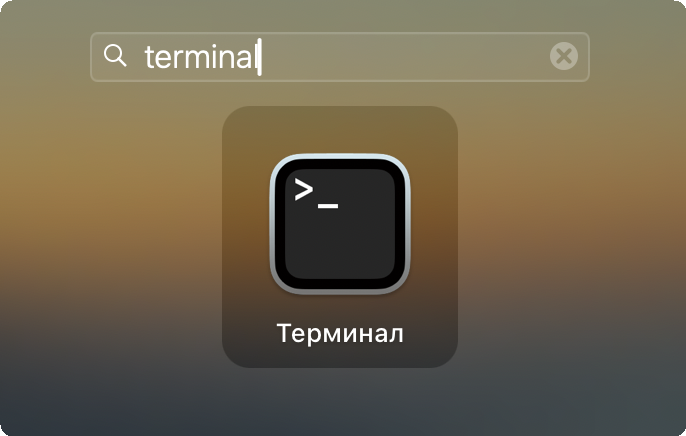
- Finder: Программы (Applications) -> Утилиты (Utilities) -> Терминал
Вставьте команду и нажмите Enter:
xattr -dr com.apple.quarantine "/Applications/ShardX Launcher.app"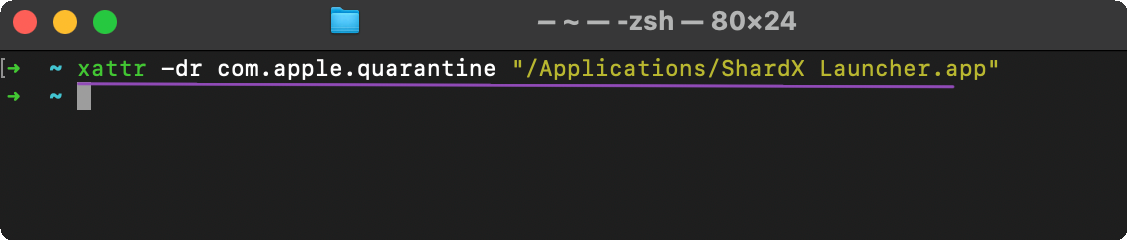
После этого откройте приложение через Spotlight (⌘ + Пробел → shardx) или из папки Applications.

Первый запуск
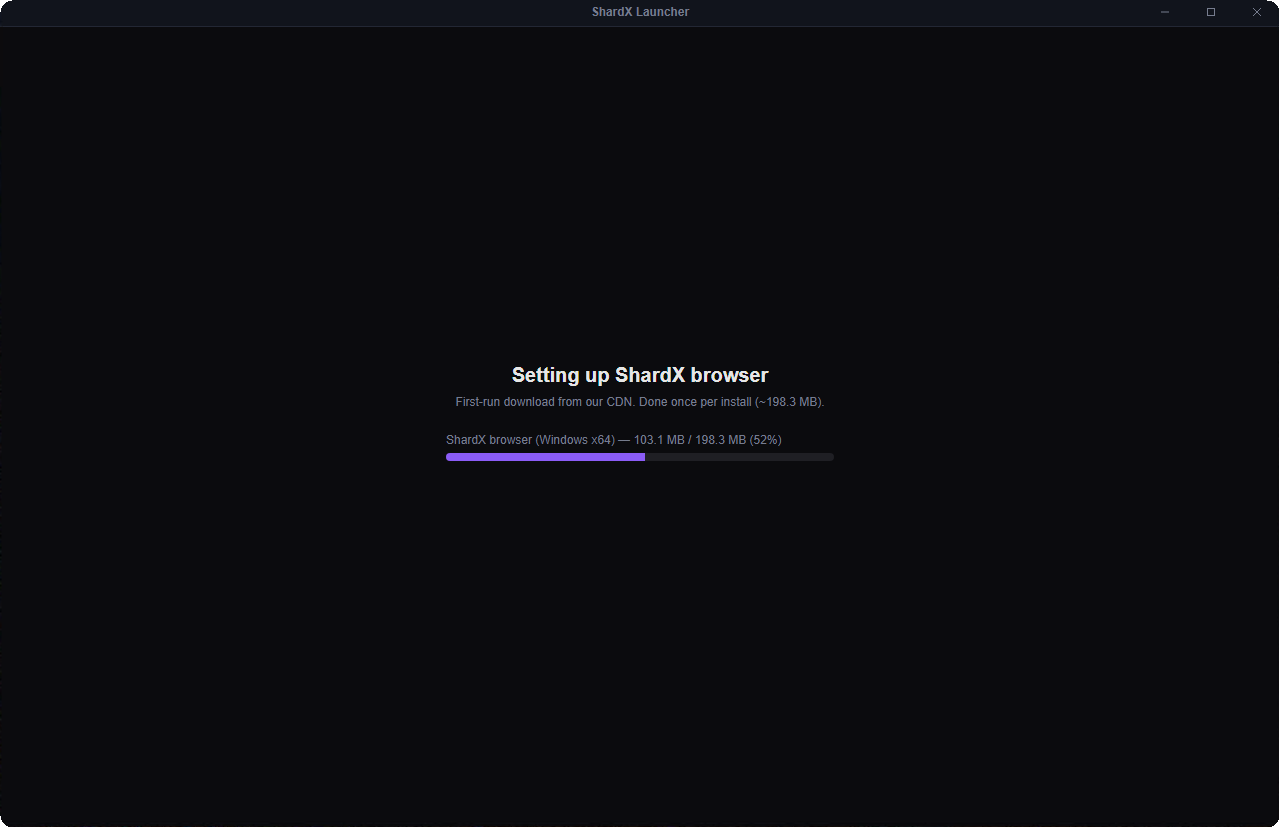
При первом запуске ShardX скачает браузерный движок с CDN (около 198 МБ, один раз). Подождите завершения загрузки.
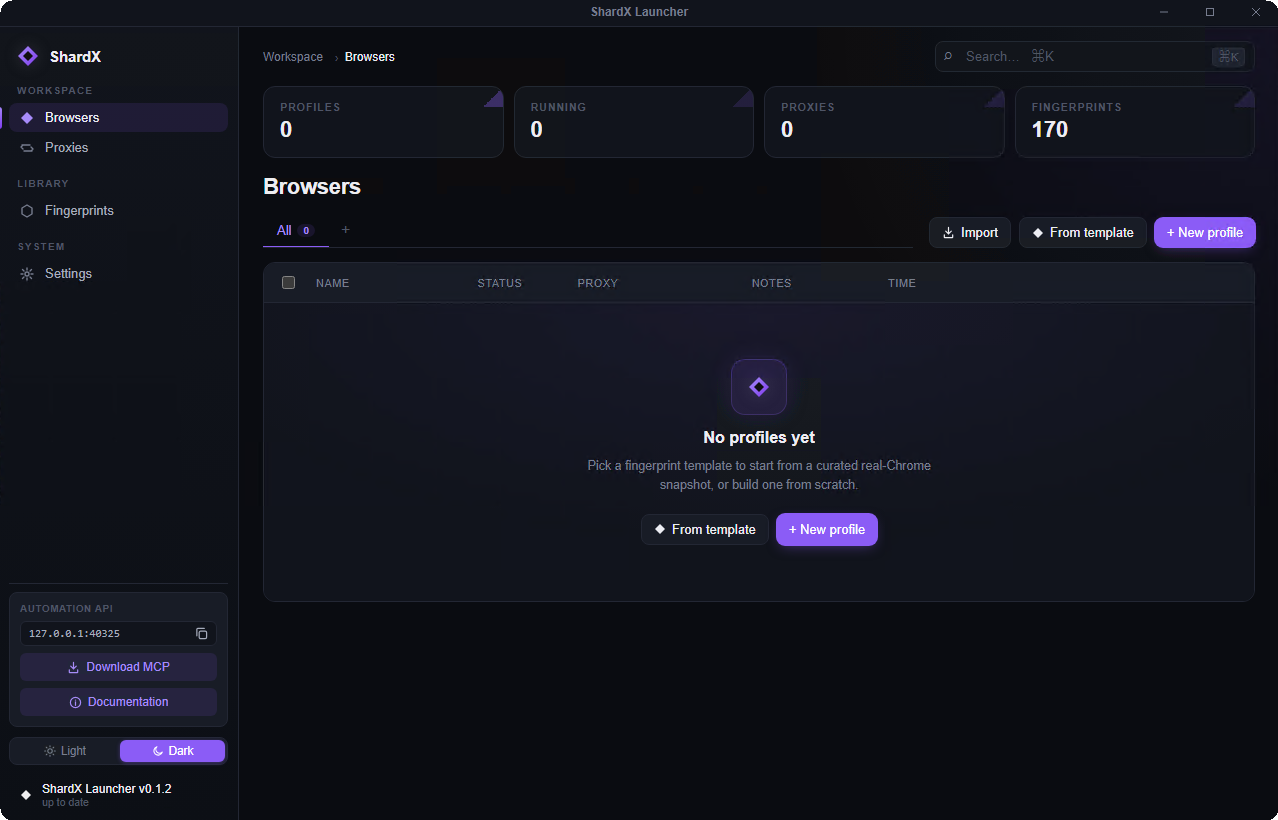
После загрузки откроется главный экран Browsers.
Добавляем прокси
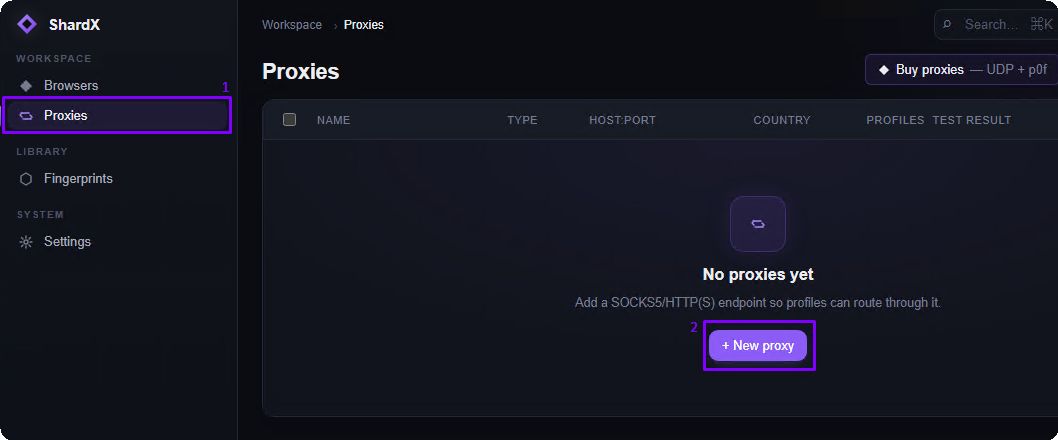
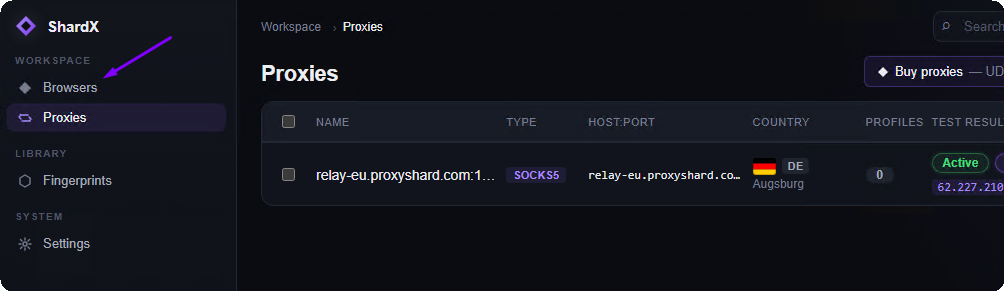
Перейдите в раздел Proxies и нажмите + New proxy.
В окне Bulk import proxies вставьте прокси по одному на строку. Поддерживаемые форматы:
host:port
host:port:user:pass
scheme://host:port
scheme://user:pass@host:port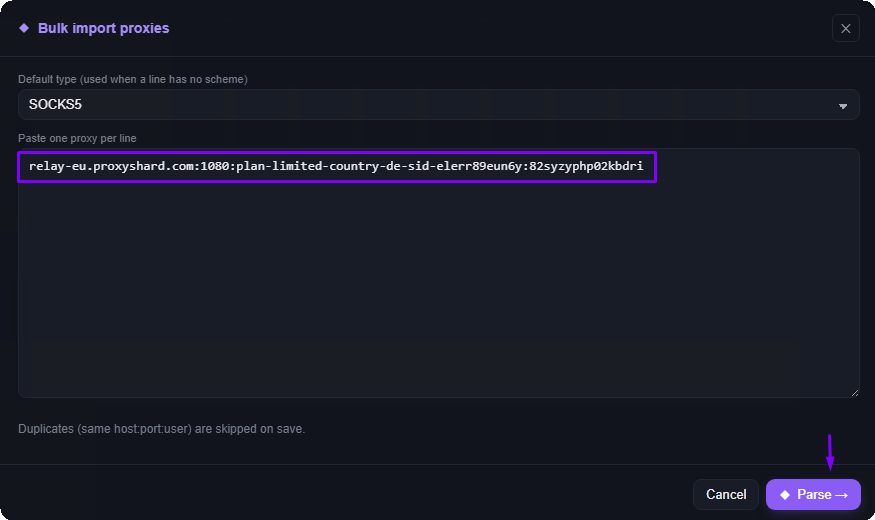
Нажмите Test all, чтобы проверить прокси перед импортом.
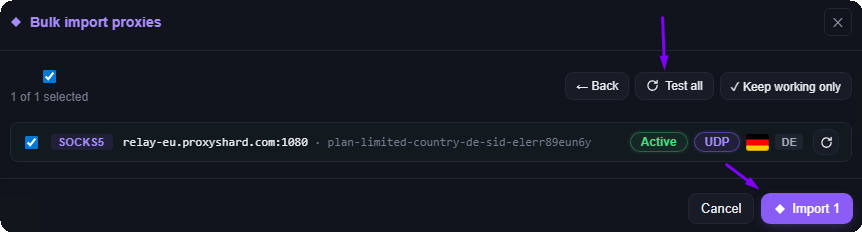
После теста каждый прокси получит статус. Прокси с меткой UDP поддерживают SOCKS5 UDP, а значит и WebRTC - что очень полезно при работе с серьёзными антифрод-системами. Если метки UDP нет, профиль браузера автоматически переходит в режим TCP-only: IP не утечёт, однако трафик может выглядеть подозрительно для продвинутых антифрод-систем. Мы крайне советуем использовать прокси с поддержкой UDP.
Нажмите Import - прокси появится в списке со статусом Active.
Создаём первый профиль
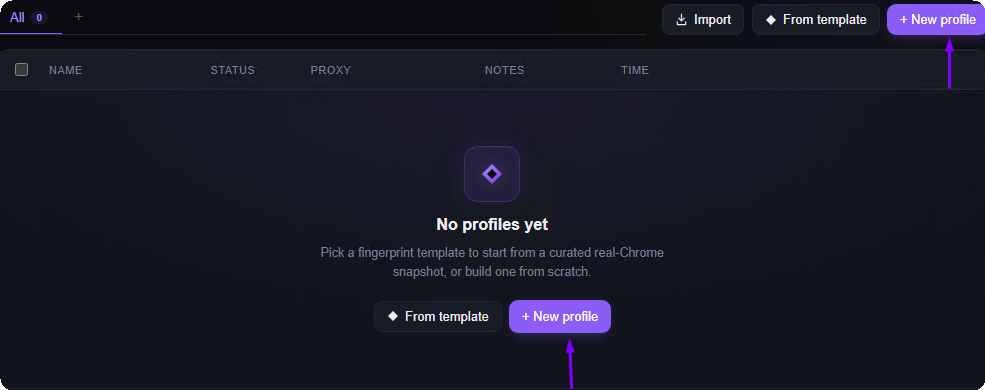
Перейдите в раздел Browsers и нажмите + New profile.
Параметры по умолчанию менять не нужно - ShardX сам сгенерирует уникальный отпечаток (fingerprint). Обязательно выберите прокси в поле Proxy внизу формы.
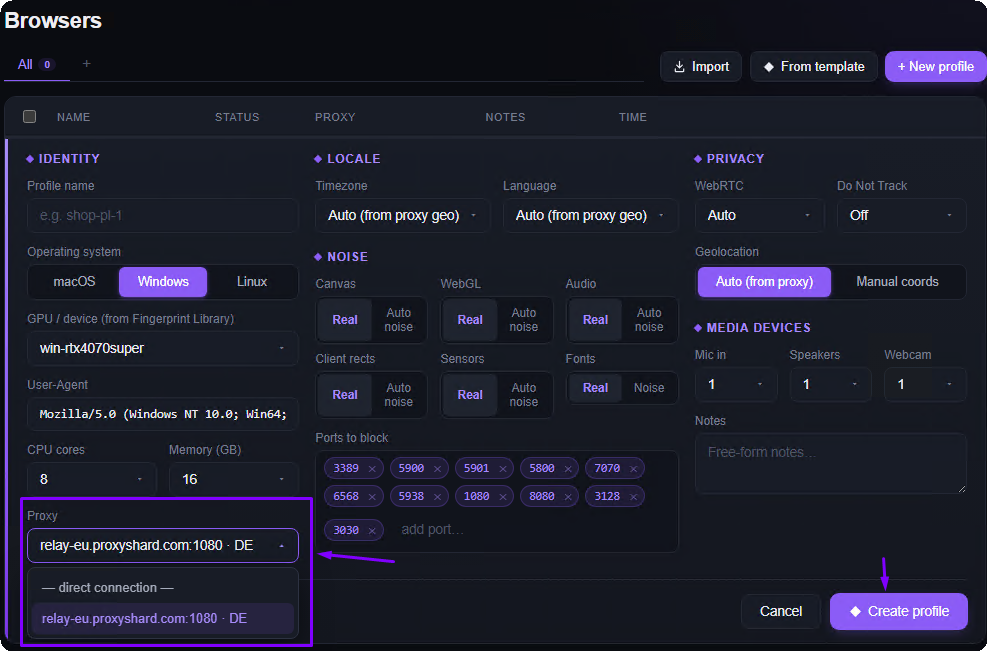
Нажмите Create profile.
Запуск профиля
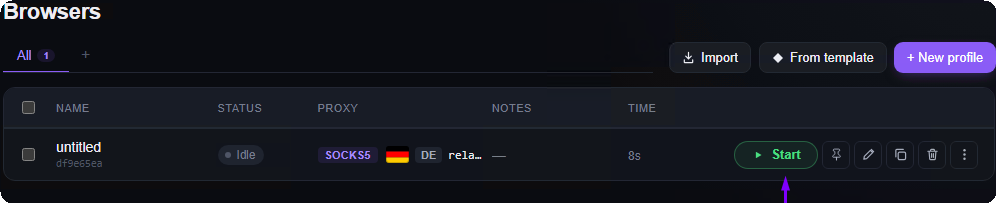
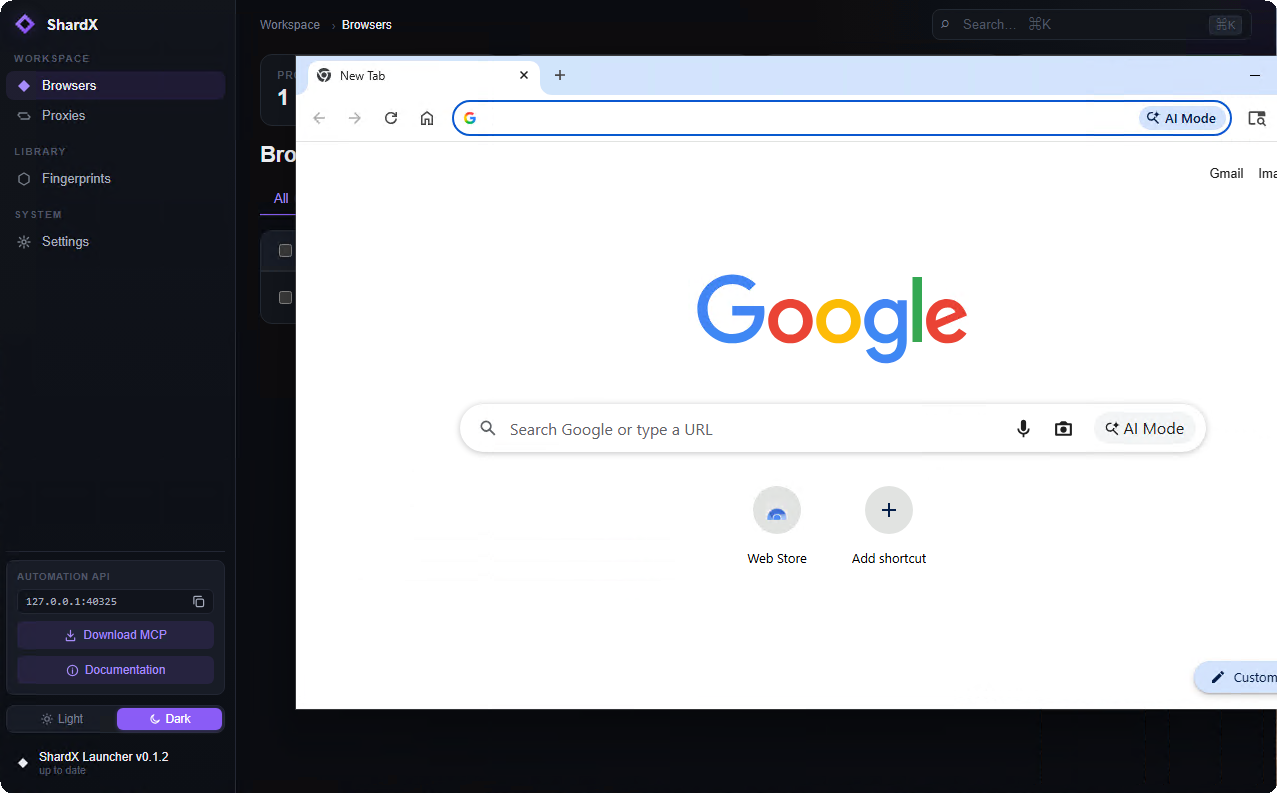
Нажмите Start - браузер запустится с изолированным отпечатком и прокси.
Возможные проблемы
Windows: приложение не запускается
Скорее всего, не установлен Microsoft Edge WebView2 Runtime. Скачайте и установите его:
developer.microsoft.comhttps://developer.microsoft.com/en-us/microsoft-edge/webview2/consumerНа оригинальных образах Windows 10/11 WebView2 уже включён. На урезанных сборках он может быть удалён.
macOS: «ShardX Launcher повреждён и не может быть открыт»
Стандартная блокировка Gatekeeper. Следуйте шагам в разделе Снятие блокировки Gatekeeper - там описаны оба способа открыть Терминал и команда для снятия карантина.
Что дальше?
- Автоматизация: управляйте профилями через локальный HTTP API на
127.0.0.1:40325 - MCP-сервер: скачайте из настроек (Settings -> MCP server) для управления профилями через AI-агента
Обновлено