> For the complete documentation index, see [llms.txt](https://docs.proxyshard.com/llms.txt). Markdown versions of documentation pages are available by appending `.md` to page URLs; this page is available as [Markdown](https://docs.proxyshard.com/ua/site-navigation/teamspaces.md).
# Команди
Команди дають змогу ділитися доступом до проксі та замовлень, призначати дозволи й працювати у спільному просторі. Один обліковий запис може створити до 10 команд.
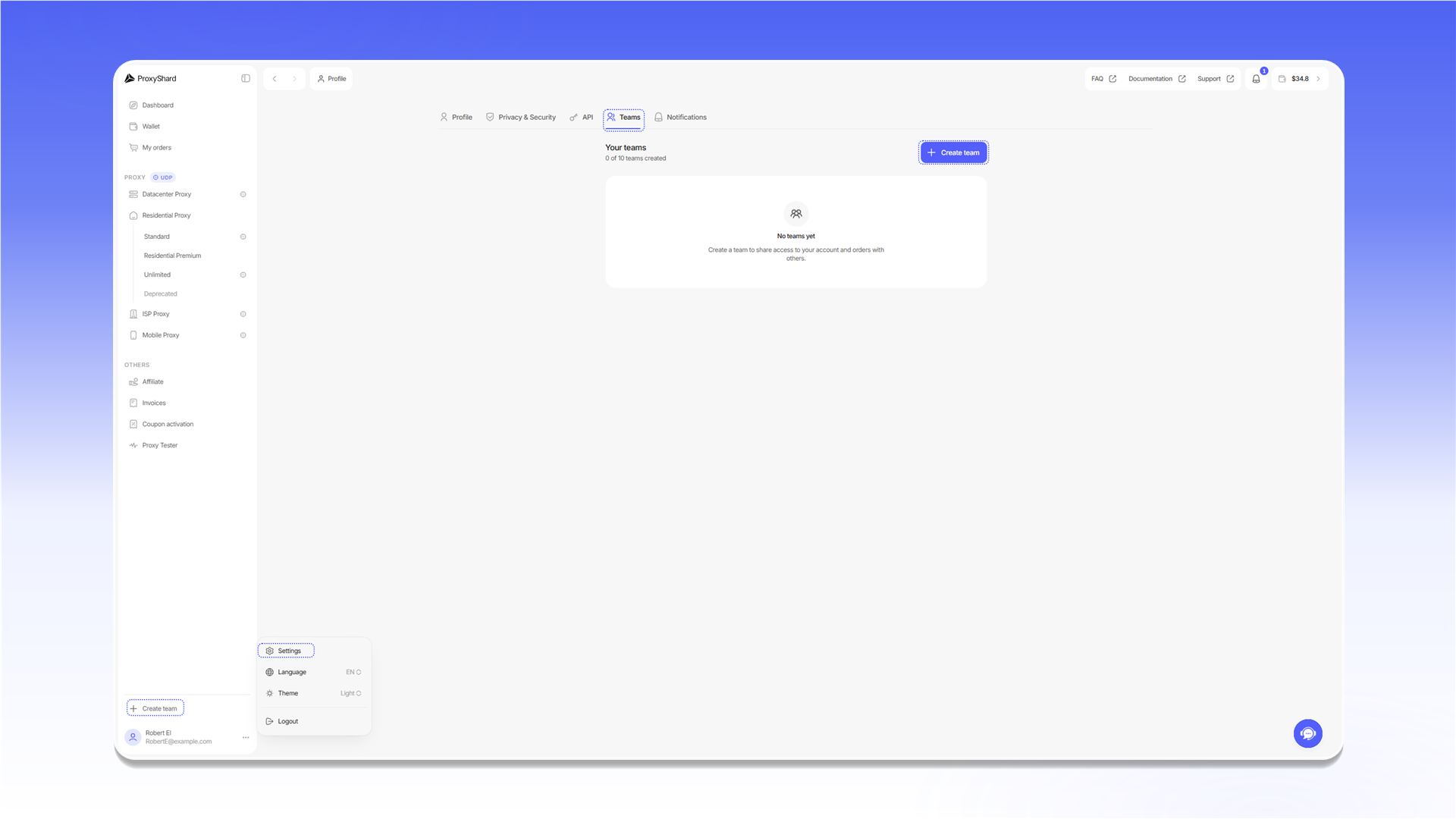
## Відкриття розділу Teams
1. Натисніть іконку профілю в нижньому лівому куті.
2. Виберіть `Settings`.
3. Відкрийте вкладку `Teams`.
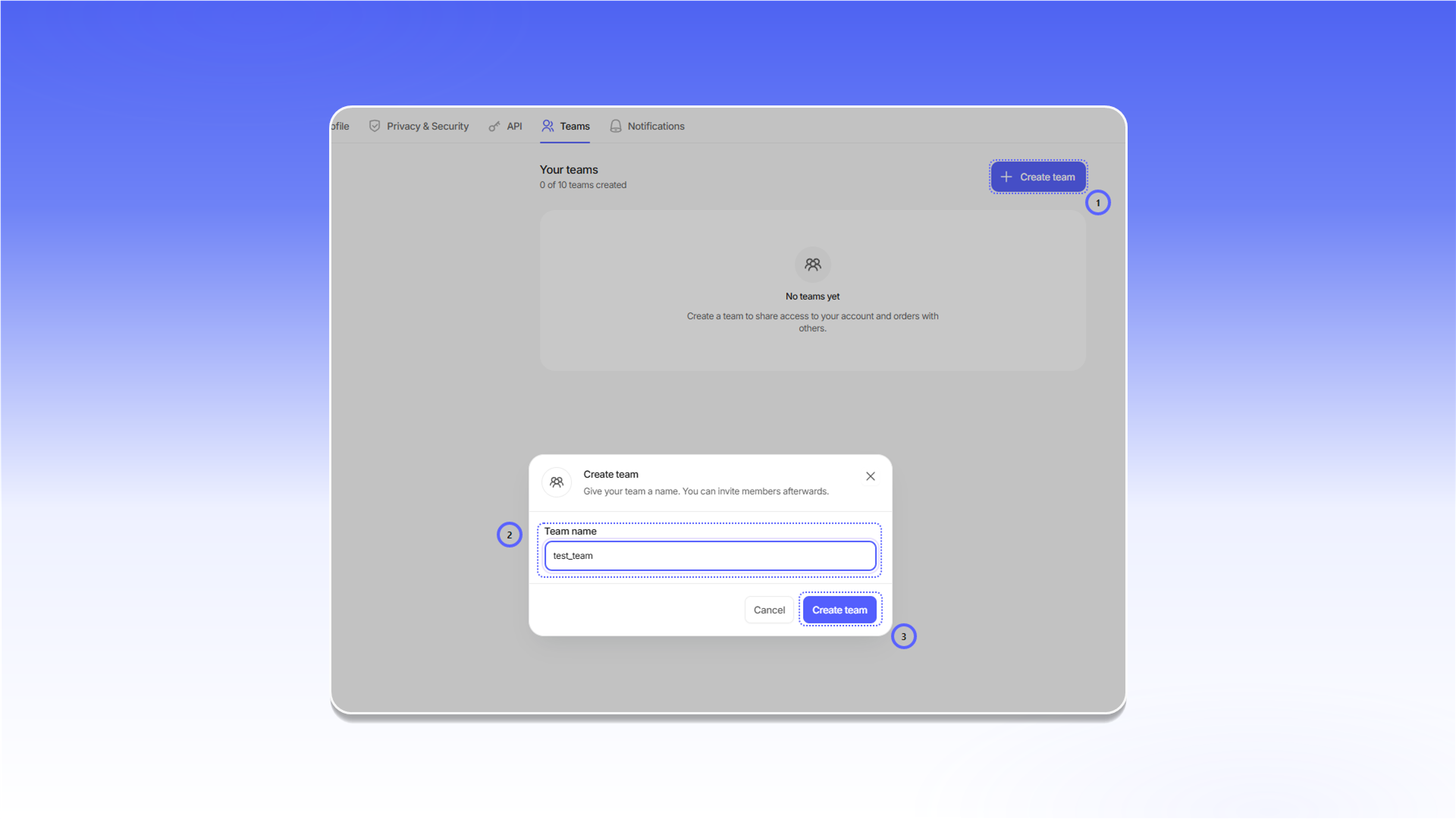
## Створення команди
1. Натисніть `Create team`.
2. Введіть назву в полі `Team name`.
3. Натисніть `Create team` у вікні створення.
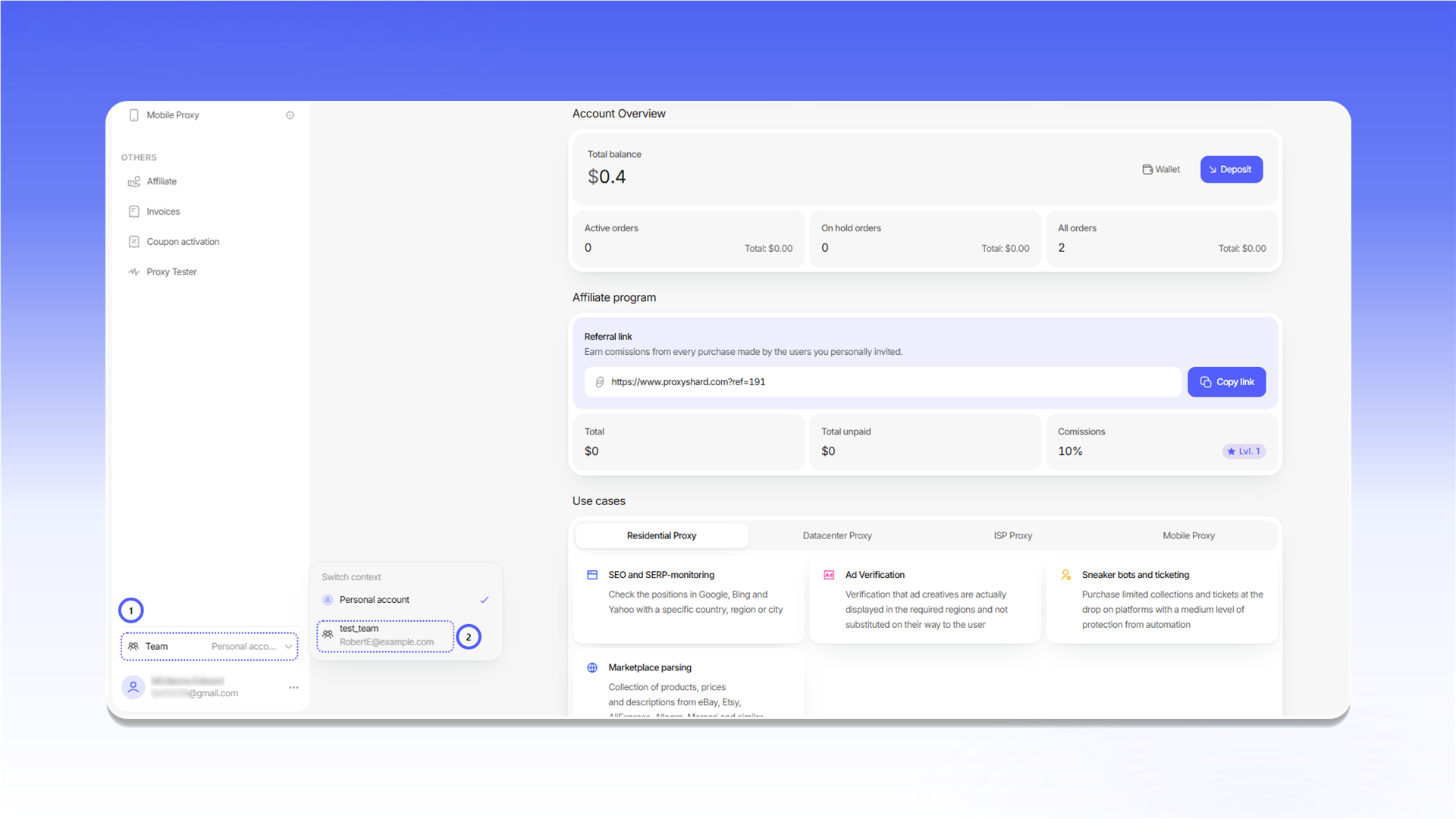
## Перемикання між командами
Відкрийте меню облікового запису в нижньому лівому куті, виберіть `Team`, а потім потрібну команду. Після перемикання в інтерфейсі відображатимуться доступні цій команді замовлення та функції.
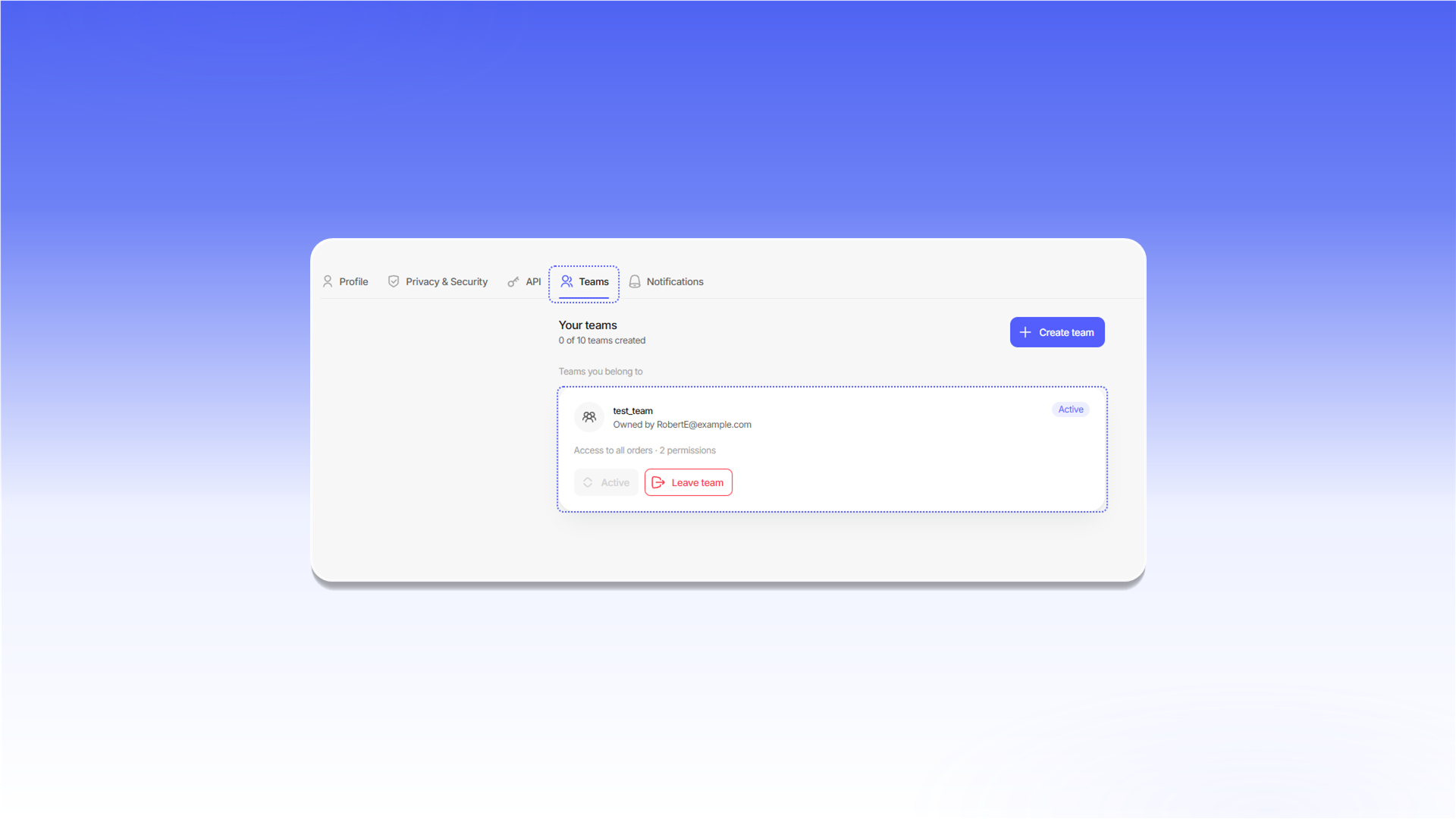
Команди, до яких ви входите, розташовані в блоці `Teams you belong to`. Активна команда має статус `Active`. Щоб вийти з команди, натисніть `Leave team`.
## Налаштування команди
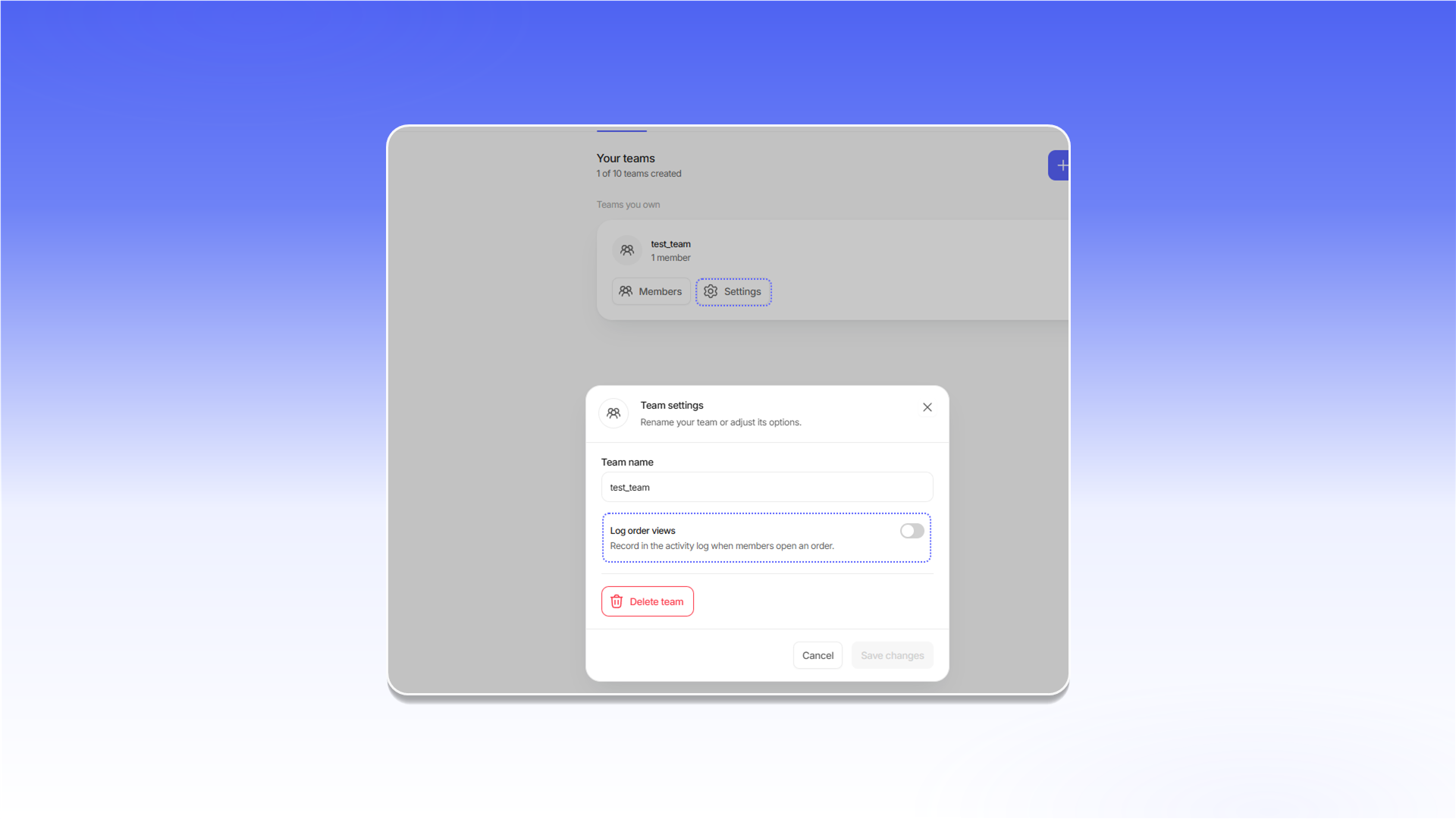
Власник може відкрити `Settings` на картці команди, змінити `Team name`, увімкнути `Log order views` або видалити команду. Після зміни налаштувань натисніть `Save changes`.
## Додавання учасників
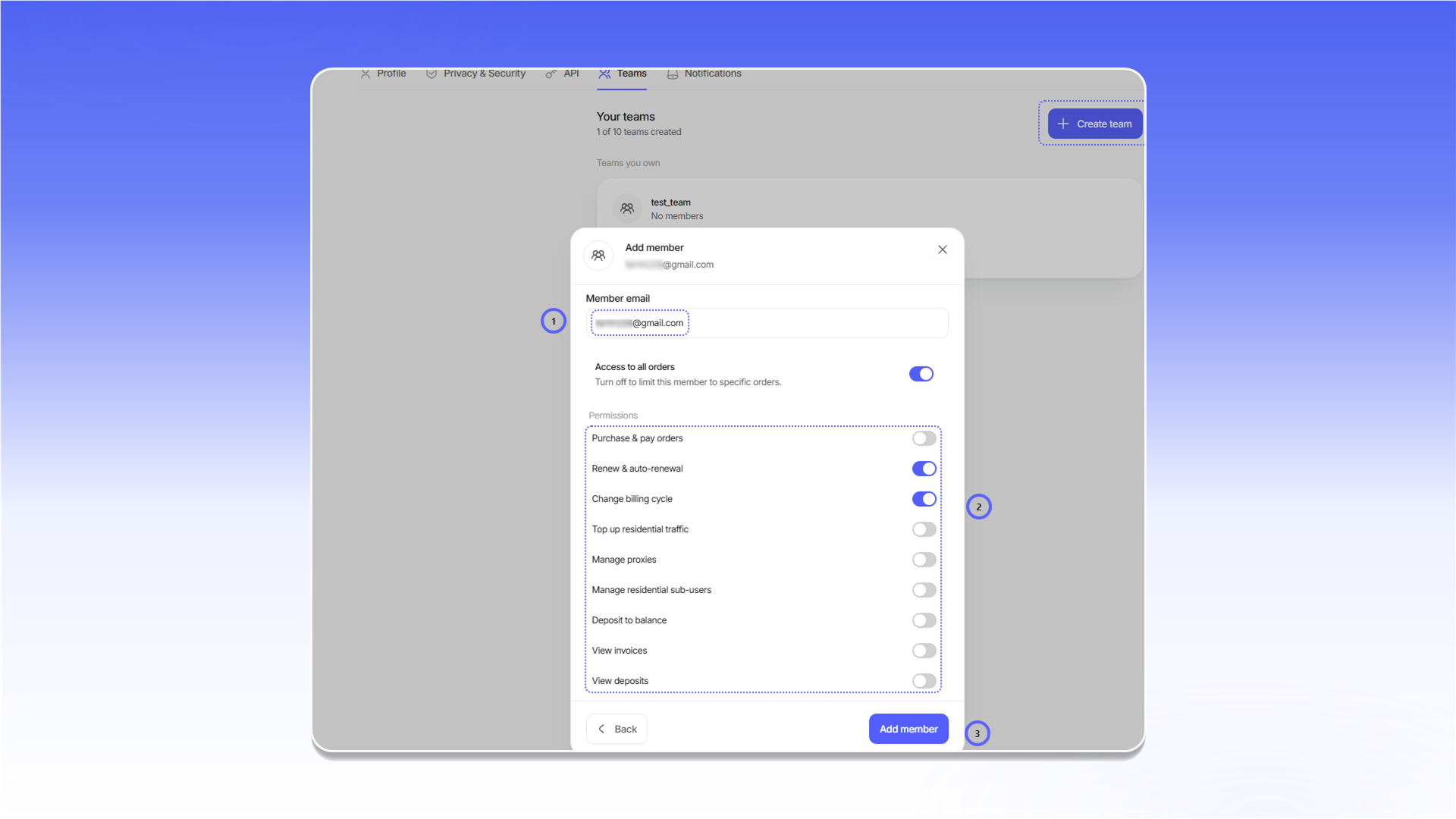
Відкрийте `Members` на картці своєї команди та натисніть `Add member`. Потім:
1. Укажіть адресу в полі `Member email`.
2. Налаштуйте доступ до замовлень і потрібні дозволи.
3. Натисніть `Add member`.
---
# Agent Instructions
This documentation is published with GitBook. GitBook is the documentation platform designed so that both humans and AI agents can read, navigate, and reason over technical content effectively. Learn more at gitbook.com.
## Querying This Documentation
If you need additional information that is not directly available in this page, you can query the documentation dynamically by asking a question.
Perform an HTTP GET request on the current page URL with the `ask` query parameter, and the optional `goal` query parameter:
```
GET https://docs.proxyshard.com/ua/site-navigation/teamspaces.md?ask=&goal=
```
`ask` is the immediate question: it should be specific, self-contained, and written in natural language.
`goal` is optional and describes the broader end goal you are ultimately trying to accomplish on behalf of the user. GitBook uses it to tailor the answer towards what is most useful for that goal.
The response will contain a direct answer to the question and relevant excerpts and sources from the documentation.
Use this mechanism when the answer is not explicitly present in the current page, you need clarification or additional context, or you want to retrieve related documentation sections.