# ShardX Launcher

{% hint style="info" %}
ShardX Launcher is distributed under the MIT license as a free tool for personal use. The software is provided "as is". We regularly release updates, but we don't offer live chat support — for serious issues, please file a bug report on [GitHub](https://github.com/ProxyShard/ShardBrowser/issues).
{% endhint %}

## System Requirements

### Windows

| Component    | Minimum                               | Recommended                              |
| ------------ | ------------------------------------- | ---------------------------------------- |
| OS           | Windows 10 22H2 or Windows 11, 64-bit | Windows 11 64-bit                        |
| Architecture | x64 / x86\_64                         | x64                                      |
| CPU          | Dual-core 64-bit with SSE3 support    | Quad-core or better                      |
| RAM          | 4 GB                                  | 8 GB (16 GB for heavy multi-profile use) |
| Disk space   | 1 GB                                  | 5 GB+                                    |
| Runtime      | Microsoft Edge WebView2               | —                                        |

### macOS

| Component  | Minimum                   | Recommended           |
| ---------- | ------------------------- | --------------------- |
| OS         | macOS 11 Big Sur or newer | Latest stable release |
| CPU        | Apple Silicon M1 or newer | Apple M2 or newer     |
| RAM        | 4 GB                      | 8 GB or more          |
| Disk space | 1 GB                      | 5 GB+                 |

{% hint style="warning" %}
The current build targets `aarch64-apple-darwin`. Intel Macs are not supported.
{% endhint %}

***

## Installing on Windows

Download the latest release:

{% embed url="<https://github.com/ProxyShard/ShardBrowser/releases/latest>" %}

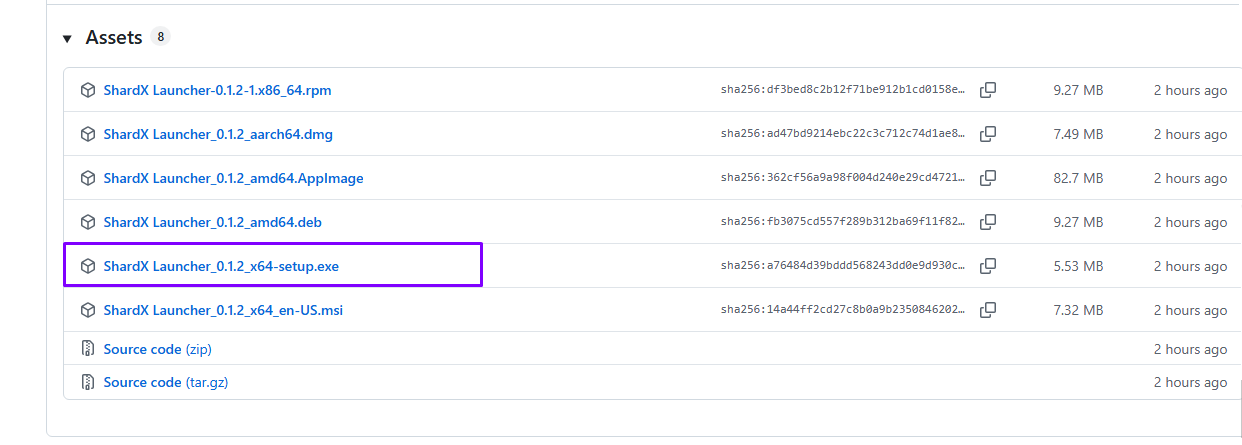
Under <mark style="color:purple;">**Assets**</mark>, pick the <mark style="color:purple;">`.exe`</mark> or <mark style="color:purple;">`.msi`</mark> file.

<figure><img src="/files/3aYLFFB57wWpuRDEoWH3" alt=""><figcaption><p>Choose .exe or .msi under Assets</p></figcaption></figure>

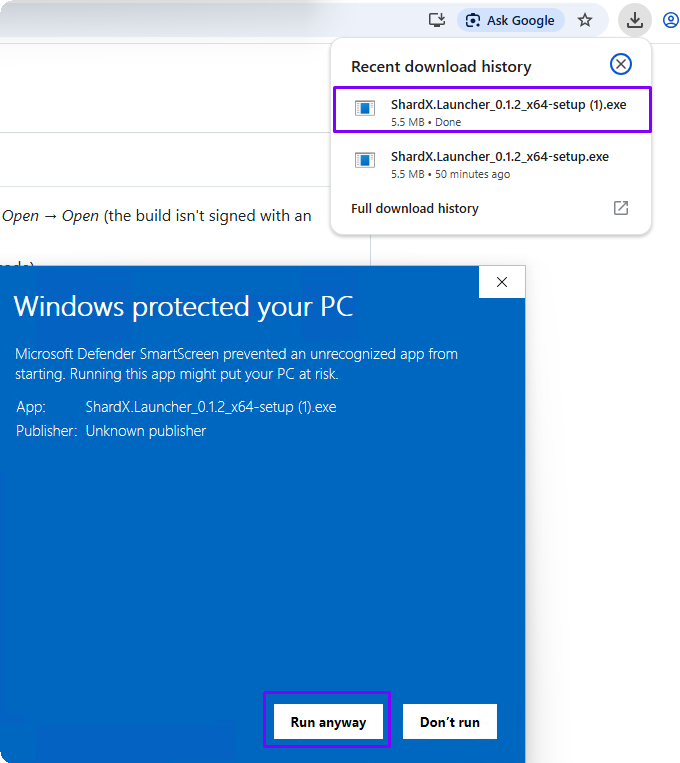
Run the downloaded file. <mark style="color:purple;">Windows SmartScreen</mark> may show a warning — click <mark style="color:purple;">**More info**</mark>, then <mark style="color:purple;">**Run anyway**</mark>.

<figure><img src="/files/xsSsWAYwntZROJ0dOFkk" alt=""><figcaption><p>SmartScreen — click «Run anyway»</p></figcaption></figure>

The installer will finish in a few seconds.
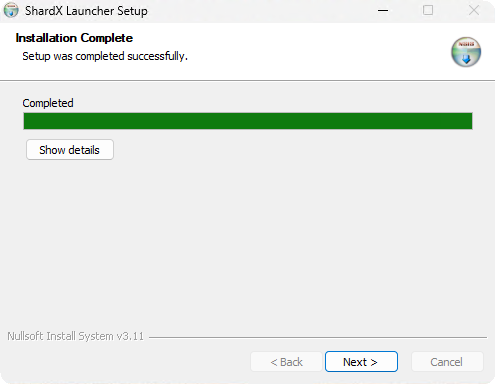
<figure><img src="/files/cqxzx9uneiBOXZMQhXVW" alt=""><figcaption><p>Installation complete</p></figcaption></figure>

***

## Installing on macOS

Download the latest release:

{% embed url="<https://github.com/ProxyShard/ShardBrowser/releases/latest>" %}

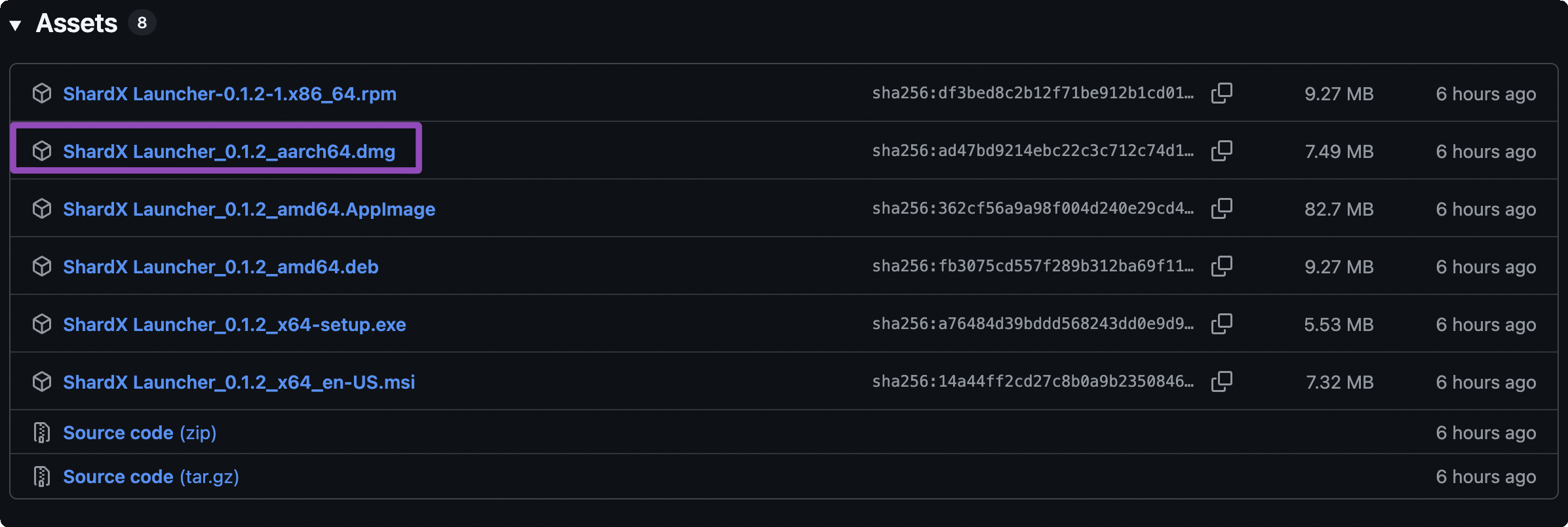
Under <mark style="color:purple;">**Assets**</mark>, pick the <mark style="color:purple;">`aarch64.dmg`</mark> file.

<figure><img src="/files/zQWJrUUaWgPwh0INOmdf" alt=""><figcaption><p>Choose aarch64.dmg under Assets</p></figcaption></figure>

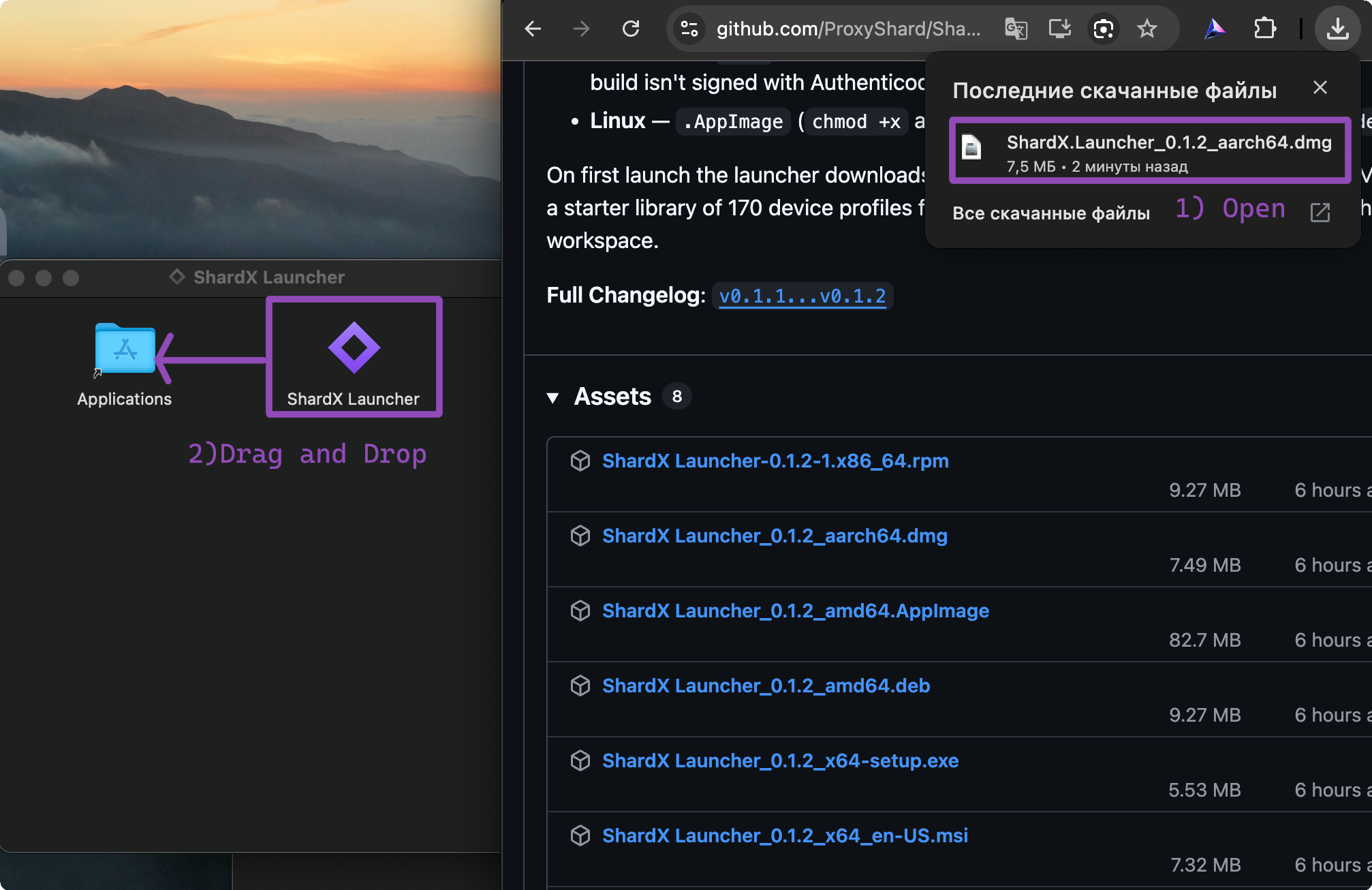
Open the downloaded `.dmg` and drag <mark style="color:purple;">**ShardX Launcher**</mark> into the <mark style="color:purple;">**Applications**</mark> folder.

<figure><img src="/files/b8XNkZSPNX2pe1gwqC5D" alt=""><figcaption><p>Drag the icon into Applications</p></figcaption></figure>

### Bypassing Gatekeeper

{% hint style="warning" %}
This step is mandatory. macOS blocks all unsigned apps — without it the application will not open.
{% endhint %}

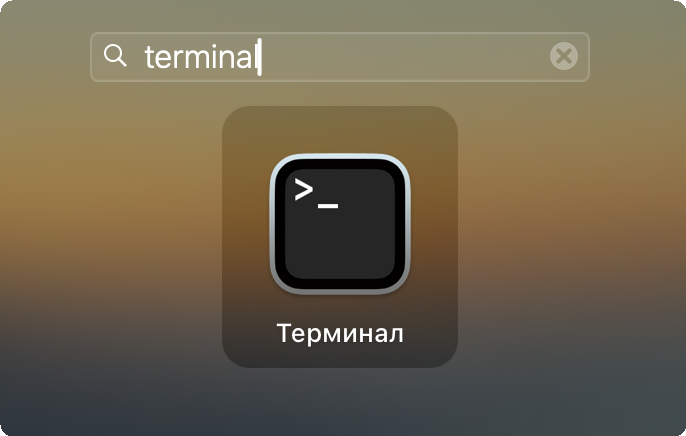
Open <mark style="color:purple;">**Terminal**</mark> using one of two methods:

* <mark style="color:purple;">**Spotlight:**</mark> press `⌘ + Space`, type `terminal`, select the app

<figure><img src="/files/Kn94RcFXBdRuDWCGgVw3" alt=""><figcaption><p>Finding Terminal via Spotlight</p></figcaption></figure>

* <mark style="color:purple;">**Finder:**</mark> Applications -> Utilities -> Terminal

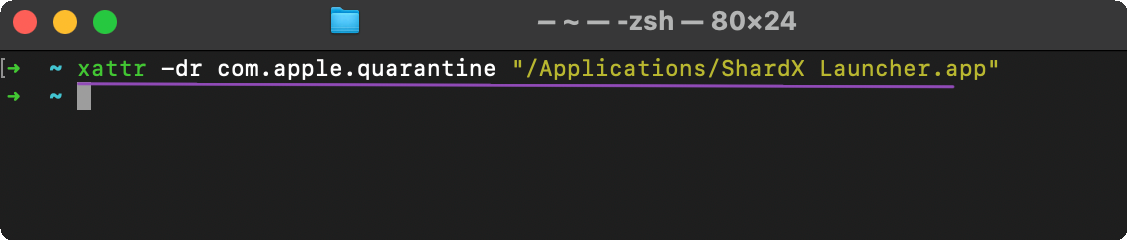
Paste the command and press <mark style="color:purple;">**Enter:**</mark>

```bash
xattr -dr com.apple.quarantine "/Applications/ShardX Launcher.app"
```

<figure><img src="/files/FSG57PAl2iNGIgUrT0qg" alt=""><figcaption><p>The command runs silently — that's normal</p></figcaption></figure>

After that, open the app via <mark style="color:purple;">Spotlight</mark> (`⌘ + Space` → `shardx`) or from the <mark style="color:purple;">Applications</mark> folder.

<figure><img src="/files/TWh0iDu9yYaAHaIZ0tpg" alt=""><figcaption><p>Launching ShardX via Spotlight</p></figcaption></figure>

***

## First Launch

On first launch ShardX downloads the browser engine from CDN (about 198 MB, one time only). Wait for the download to finish.
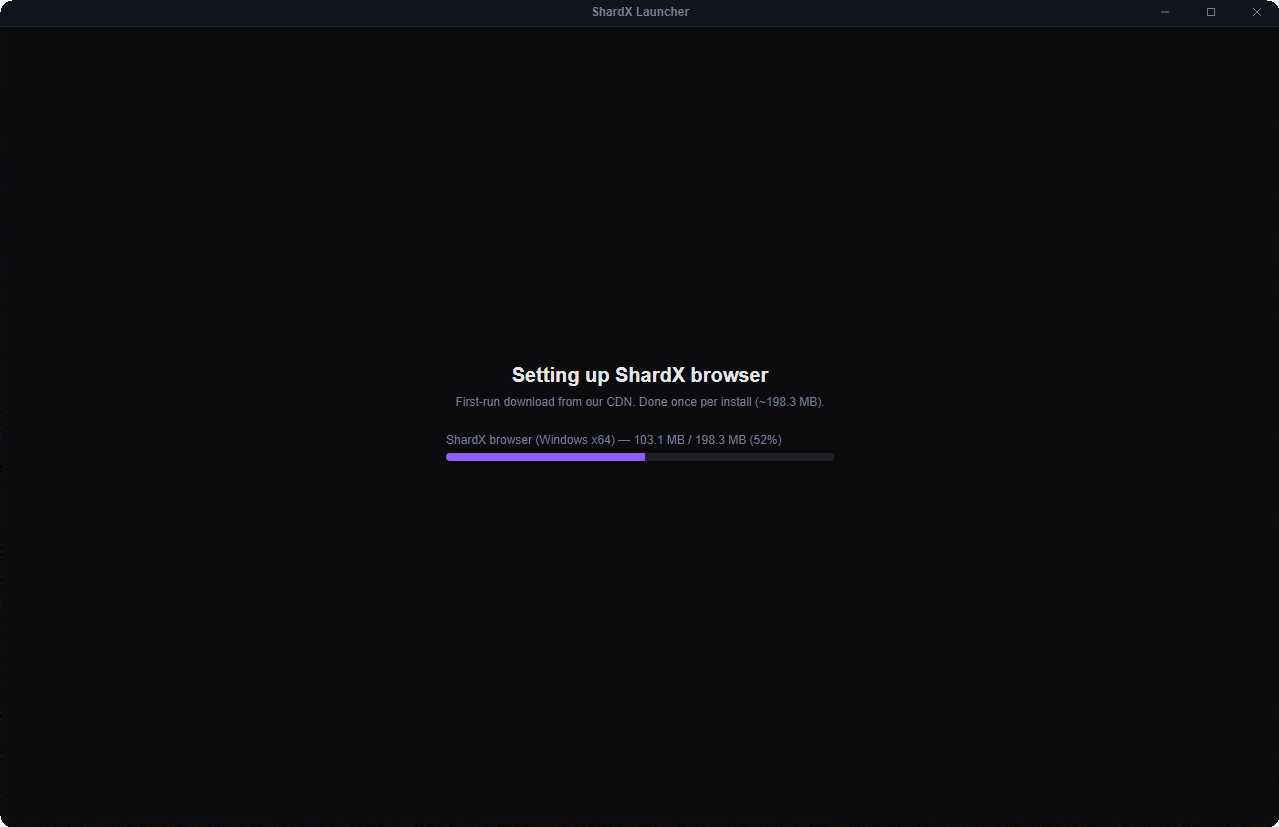
<figure><img src="/files/enxZ90C3sgUHbJg7CA8O" alt=""><figcaption><p>Downloading the engine on first launch</p></figcaption></figure>

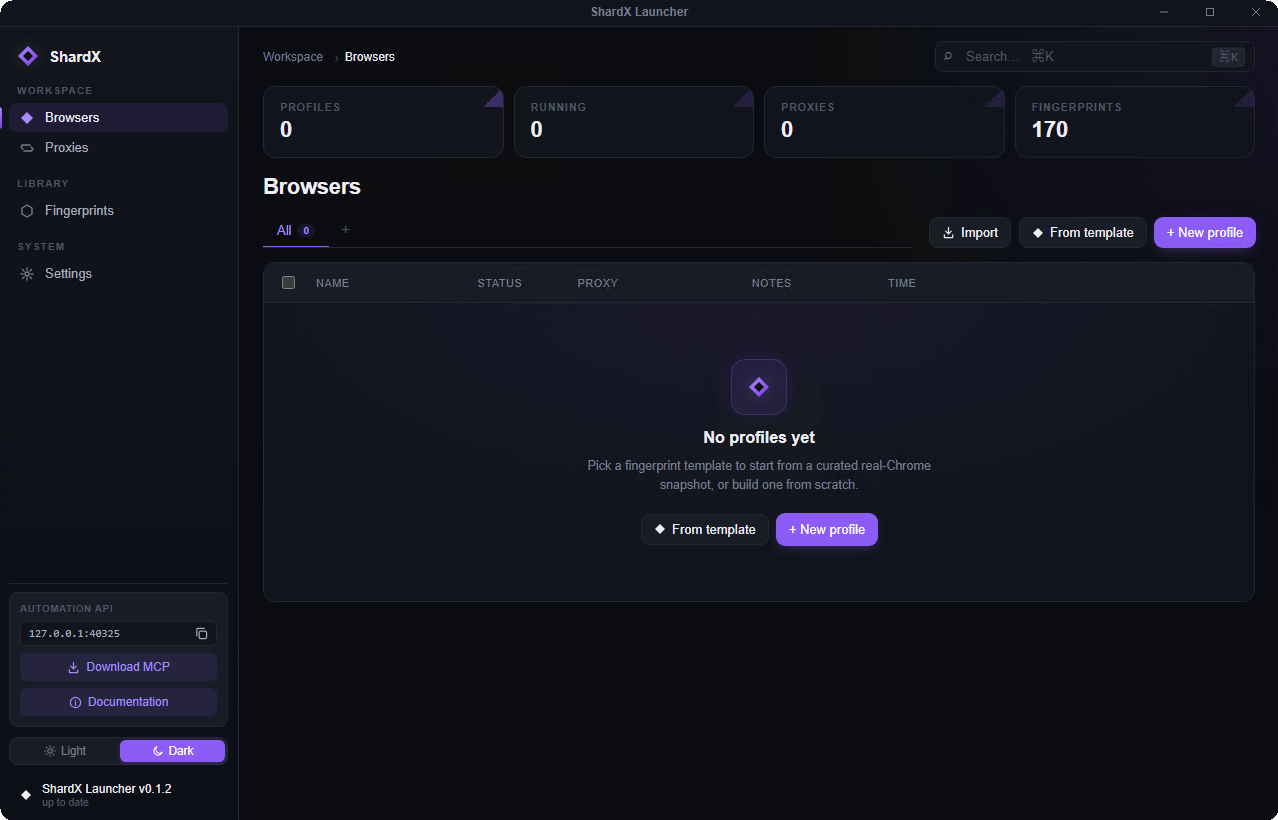
Once done, the main <mark style="color:purple;">**Browsers**</mark> screen will open.

<figure><img src="/files/xzNiJfNJHpZQVKkVEpMB" alt=""><figcaption><p>ShardX Launcher main screen</p></figcaption></figure>

***

## Adding a Proxy

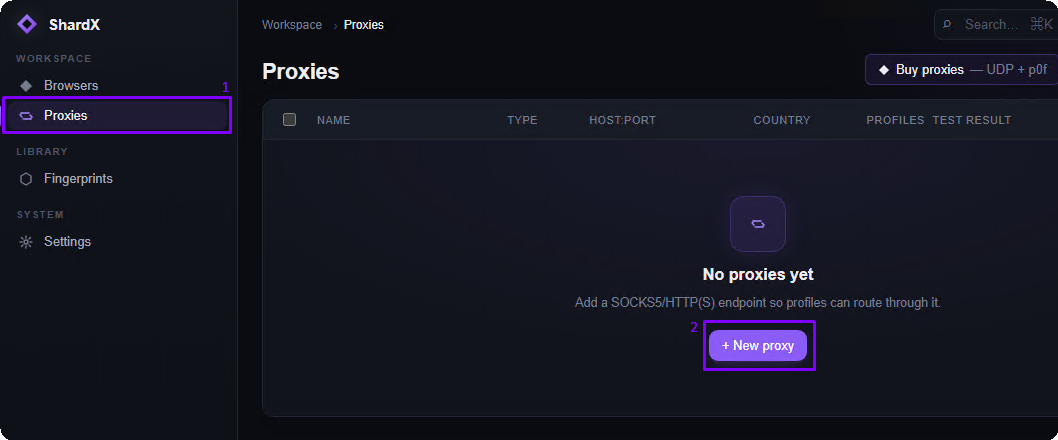
Go to the <mark style="color:purple;">**Proxies**</mark> section and click <mark style="color:purple;">**+ New proxy**</mark>.

<figure><img src="/files/5khOeDOWY7lcP8ivMqQQ" alt=""><figcaption><p>Proxies section</p></figcaption></figure>

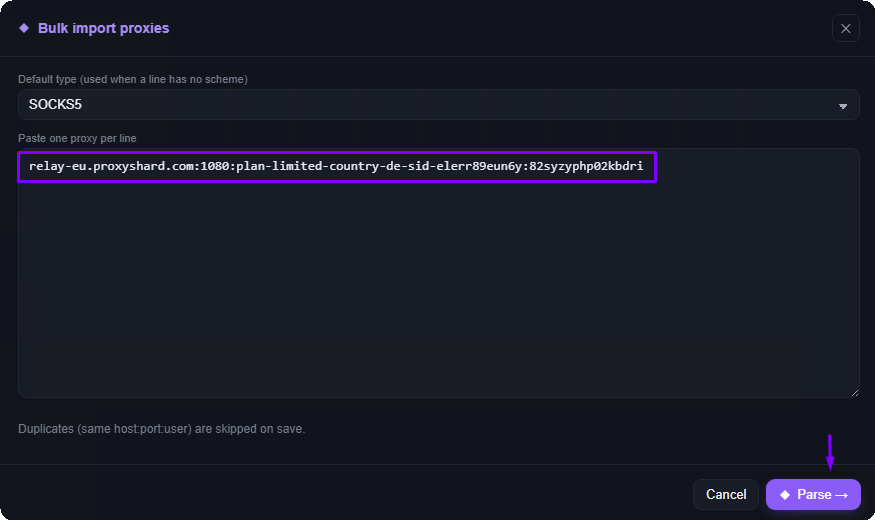
In the <mark style="color:purple;">**Bulk import proxies**</mark> window, paste your proxies one per line. Supported formats:

```
host:port
host:port:user:pass
scheme://host:port
scheme://user:pass@host:port
```

<figure><img src="/files/umsSugrlUHkAviAsJw1w" alt=""><figcaption><p>Paste proxies one per line</p></figcaption></figure>

Click <mark style="color:purple;">**Test all**</mark> to check the proxies before importing.
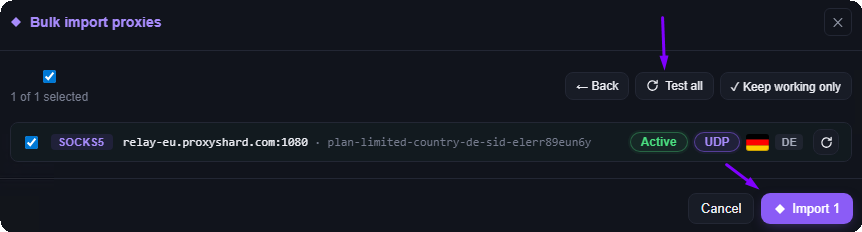
<figure><img src="/files/KgAvhNNToQuEdmIdUdmr" alt=""><figcaption><p>Click «Test all» to verify, then «Import»</p></figcaption></figure>

After testing, each proxy gets a status. Proxies with the <mark style="color:purple;">**UDP**</mark> label support <mark style="color:purple;">SOCKS5 UDP</mark>, which means <mark style="color:purple;">WebRTC</mark> too — very useful when working with serious antifraud systems. If there is no <mark style="color:purple;">**UDP**</mark> label, the browser profile automatically switches to <mark style="color:purple;">**TCP-only**</mark> mode: your IP won't leak, but traffic may look suspicious to advanced antifraud systems. We strongly recommend using [proxies with UDP support](/eng/our-products/about-udp.md).

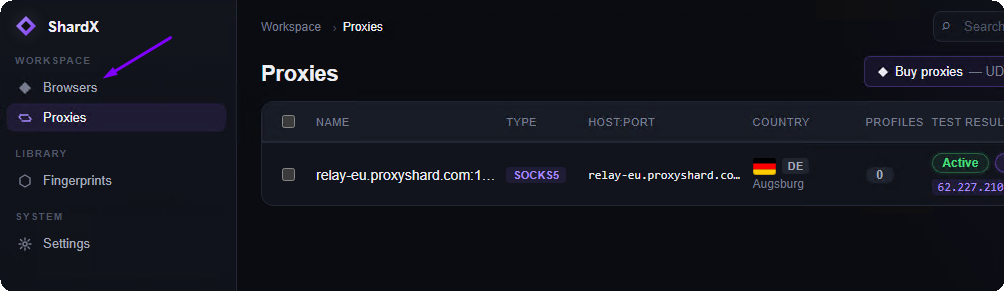
Click <mark style="color:purple;">**Import**</mark> — the proxy will appear in the list with status <mark style="color:purple;">**Active**</mark>.

<figure><img src="/files/dtmq7A7e2oudkvRZ4z5Z" alt=""><figcaption><p>Proxy added</p></figcaption></figure>

***

## Creating Your First Profile

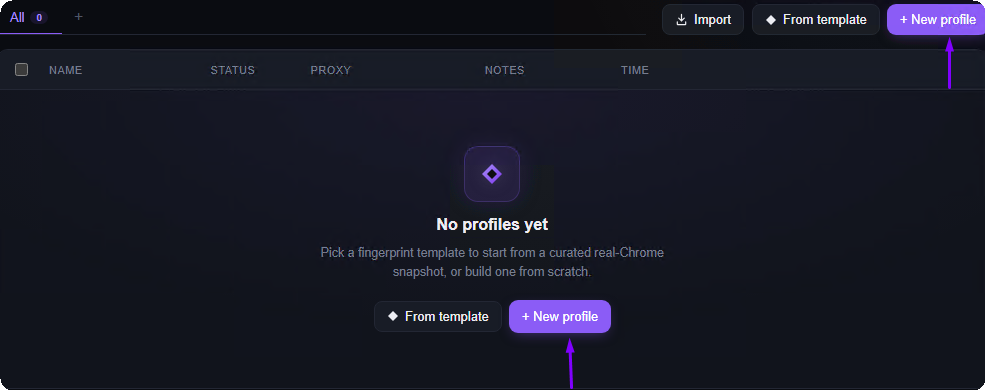
Go to the <mark style="color:purple;">**Browsers**</mark> section and click <mark style="color:purple;">**+ New profile**</mark>.

<figure><img src="/files/xZGXitCaZqbM5EAaPuoA" alt=""><figcaption><p>Browsers section</p></figcaption></figure>

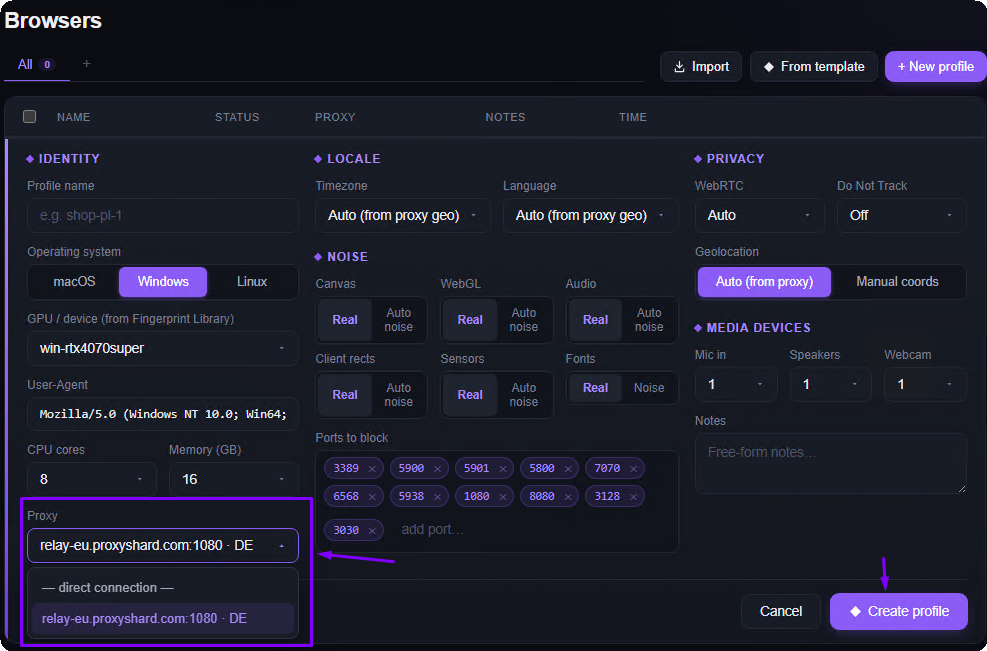
No need to change the default settings — ShardX will generate a unique <mark style="color:purple;">fingerprint</mark> automatically. Make sure to select a proxy in the <mark style="color:purple;">**Proxy**</mark> field at the bottom of the form.

<figure><img src="/files/rQ6XKFmxuzHgausnng9C" alt=""><figcaption><p>Select a proxy and click «Create profile»</p></figcaption></figure>

Click <mark style="color:purple;">**Create profile**</mark>.

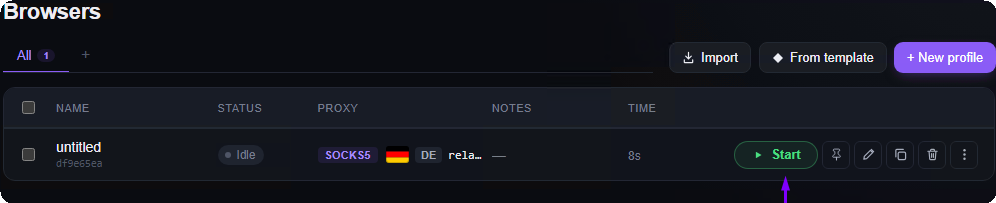
<figure><img src="/files/9t8aJ7mcrIsJ3BuYo61c" alt=""><figcaption><p>Profile created</p></figcaption></figure>

***

## Launching a Profile

Click <mark style="color:purple;">**Start**</mark> — the browser will open with an isolated fingerprint and proxy.
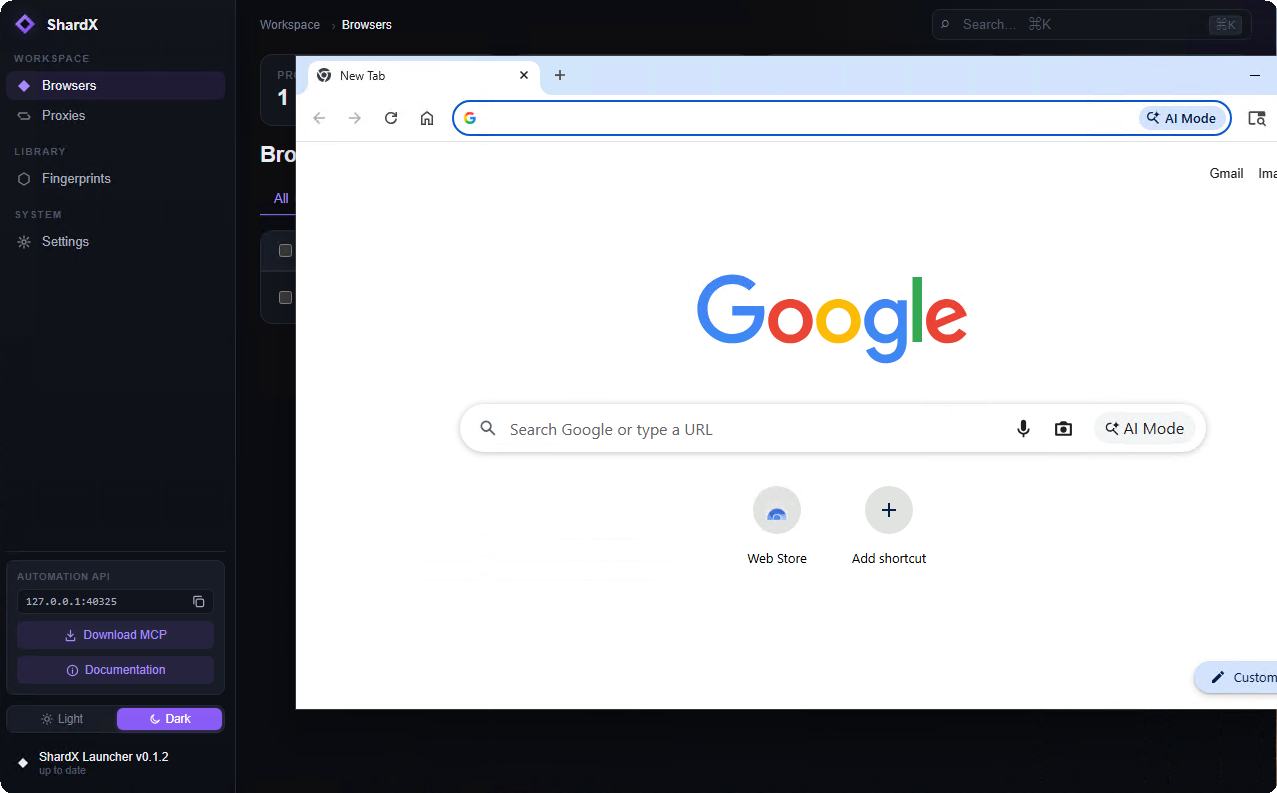
<figure><img src="/files/7HIpNAYLE94CR6Zh9c8M" alt=""><figcaption><p>Profile launched</p></figcaption></figure>

***

## Troubleshooting

### Windows: the app won't start

Most likely <mark style="color:purple;">Microsoft Edge WebView2 Runtime</mark> is not installed. Download and install it:

{% embed url="<https://developer.microsoft.com/en-us/microsoft-edge/webview2/consumer>" %}

Original Windows 10/11 images already include WebView2. On stripped-down builds it may have been removed.

### macOS: "ShardX Launcher is damaged and can't be opened"

This is a standard <mark style="color:purple;">Gatekeeper</mark> block. Follow the steps in [Bypassing Gatekeeper](#bypassing-gatekeeper) — both ways to open Terminal and the command to remove the quarantine flag are described there.

***

## What's Next?

* **Automation:** manage profiles via the [local HTTP API](/eng/our-products/shardx-launcher.md) on `127.0.0.1:40325`
* **MCP server:** download it from settings (<mark style="color:purple;">Settings -> MCP server</mark>) to control profiles via an AI agent


---

# Agent Instructions: Querying This Documentation

If you need additional information that is not directly available in this page, you can query the documentation dynamically by asking a question.

Perform an HTTP GET request on the current page URL with the `ask` query parameter:

```
GET https://docs.proxyshard.com/eng/usage-instructions/shardx-browser.md?ask=<question>
```

The question should be specific, self-contained, and written in natural language.
The response will contain a direct answer to the question and relevant excerpts and sources from the documentation.

Use this mechanism when the answer is not explicitly present in the current page, you need clarification or additional context, or you want to retrieve related documentation sections.