Network fingerprint spoofing (p0f)
What p0f is and why it matters
Every device on a network has a digital fingerprint at the TCP/IP level, called p0f. It is formed from network stack parameters such as MSS, TSval, TTL, TCP options, Window size, and TOS. These parameters differ across Windows, macOS, Linux, iOS, and Android, and anti-fraud systems can use those differences to identify the device environment.
How websites perform these checks:
- The website checks the User-Agent, TLS fingerprint, and other client parameters to determine which operating system the user is using.
- In parallel, the network layer of the connection is analyzed, namely the TCP/IP fingerprint that the proxy server sends together with your traffic.
- If the browser says “I am Windows 11”, but the TCP/IP fingerprint indicates Linux, the anti-fraud system records a mismatch.
A common problem: Datacenter and ISP proxies usually run on Linux servers. Without spoofing, the network fingerprint may indicate Linux even when the user is working on Windows or macOS. An anti-fraud system may treat this mismatch as a sign that a proxy is being used.
How ProxyShard solves this
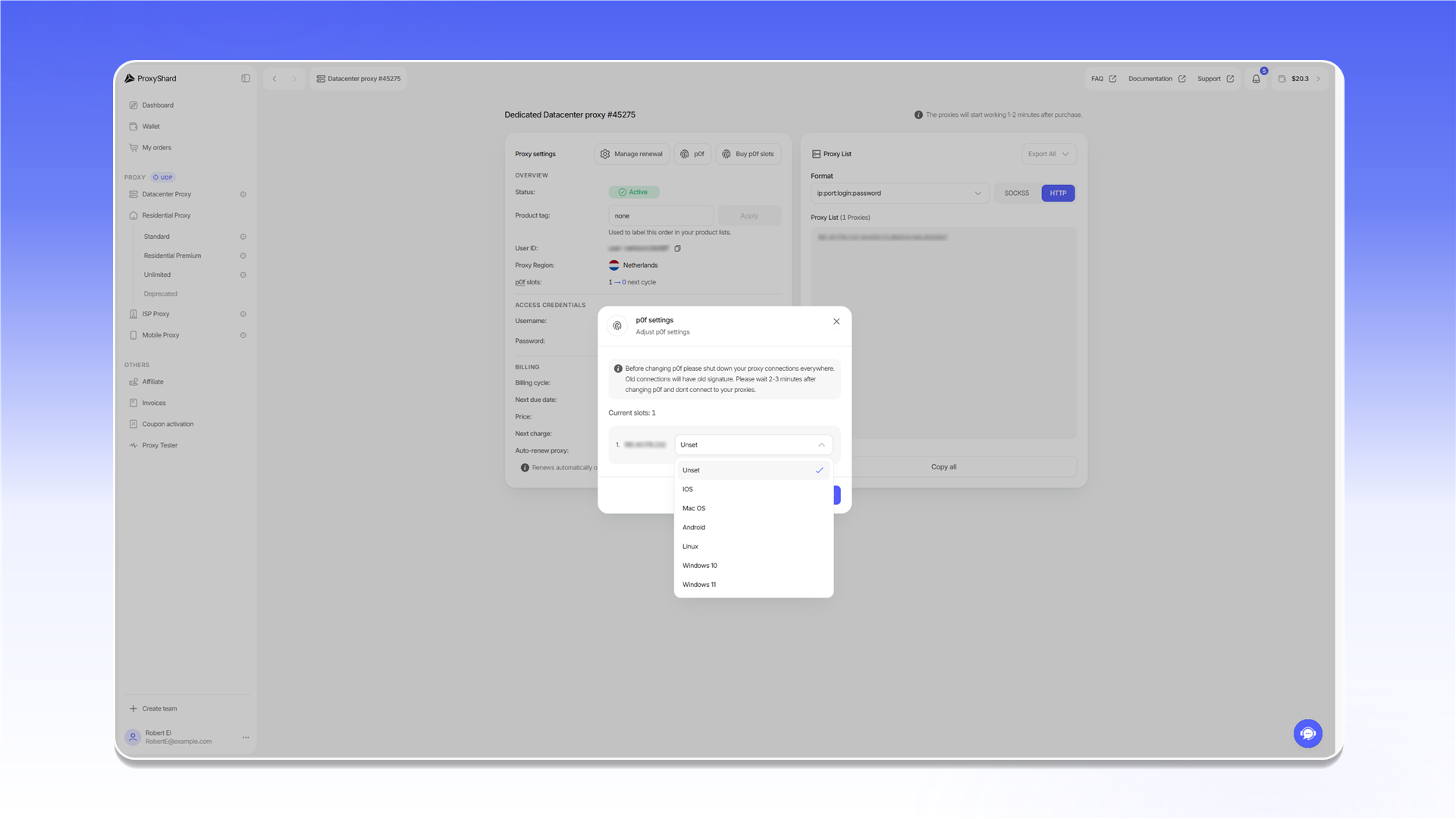
We added the ability to spoof the p0f fingerprint directly from the dashboard. You select the required OS, and the proxy server starts sending network packets with the corresponding TCP/IP fingerprint.
Available spoofing options:
| Value | Description |
|---|---|
| Unset | Default fingerprint (Linux) |
| Windows 10 | Windows 10 fingerprint |
| Windows 11 | Windows 11 fingerprint |
| Mac OS | macOS fingerprint |
| Linux | Linux fingerprint |
| iOS | iOS fingerprint |
| Android | Android fingerprint |
ISP and Datacenter proxies
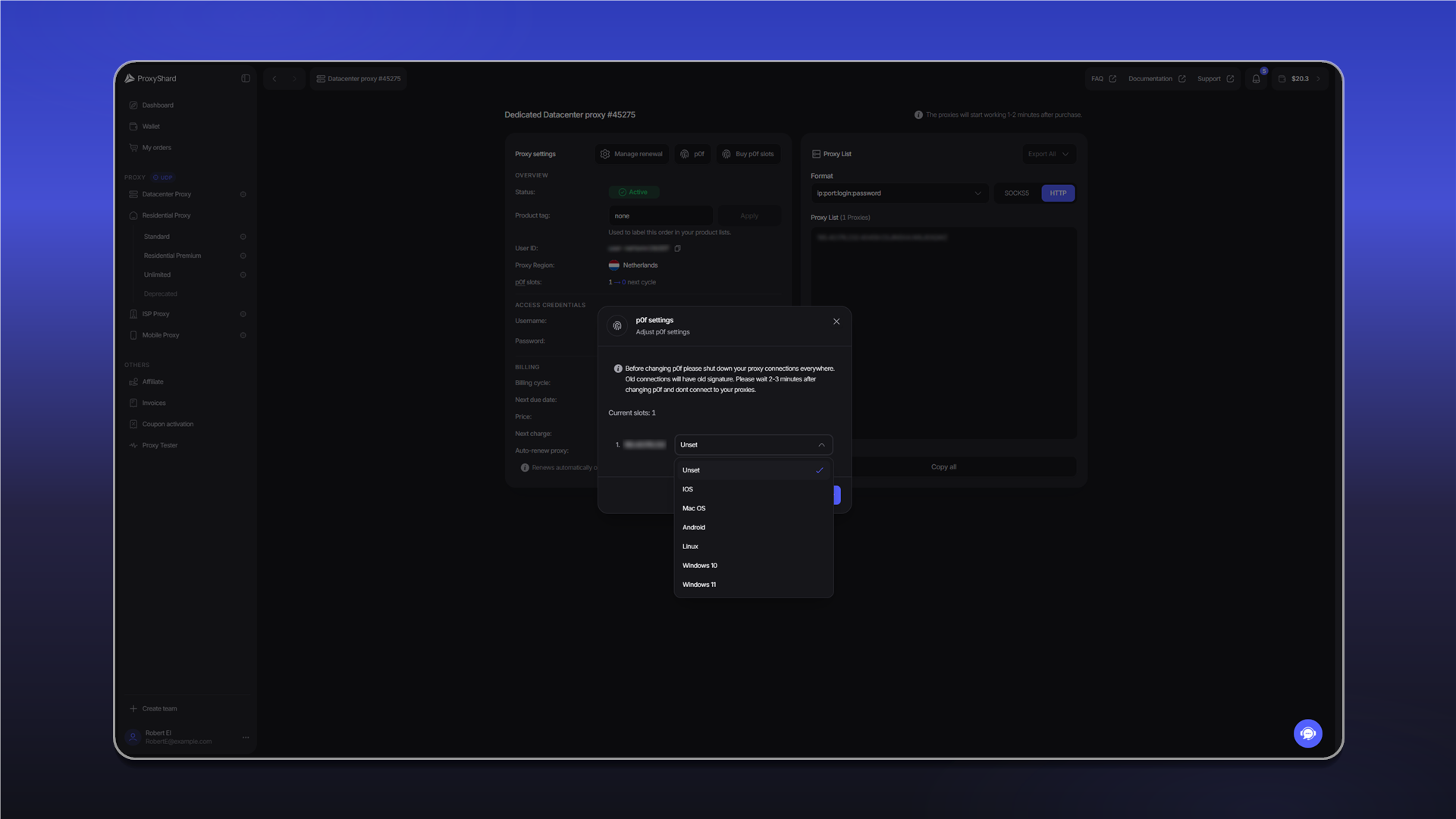
Open the order, click p0f, and select the required OS for each IP. The setting works the same way for ISP and Datacenter proxies.
Mobile proxies
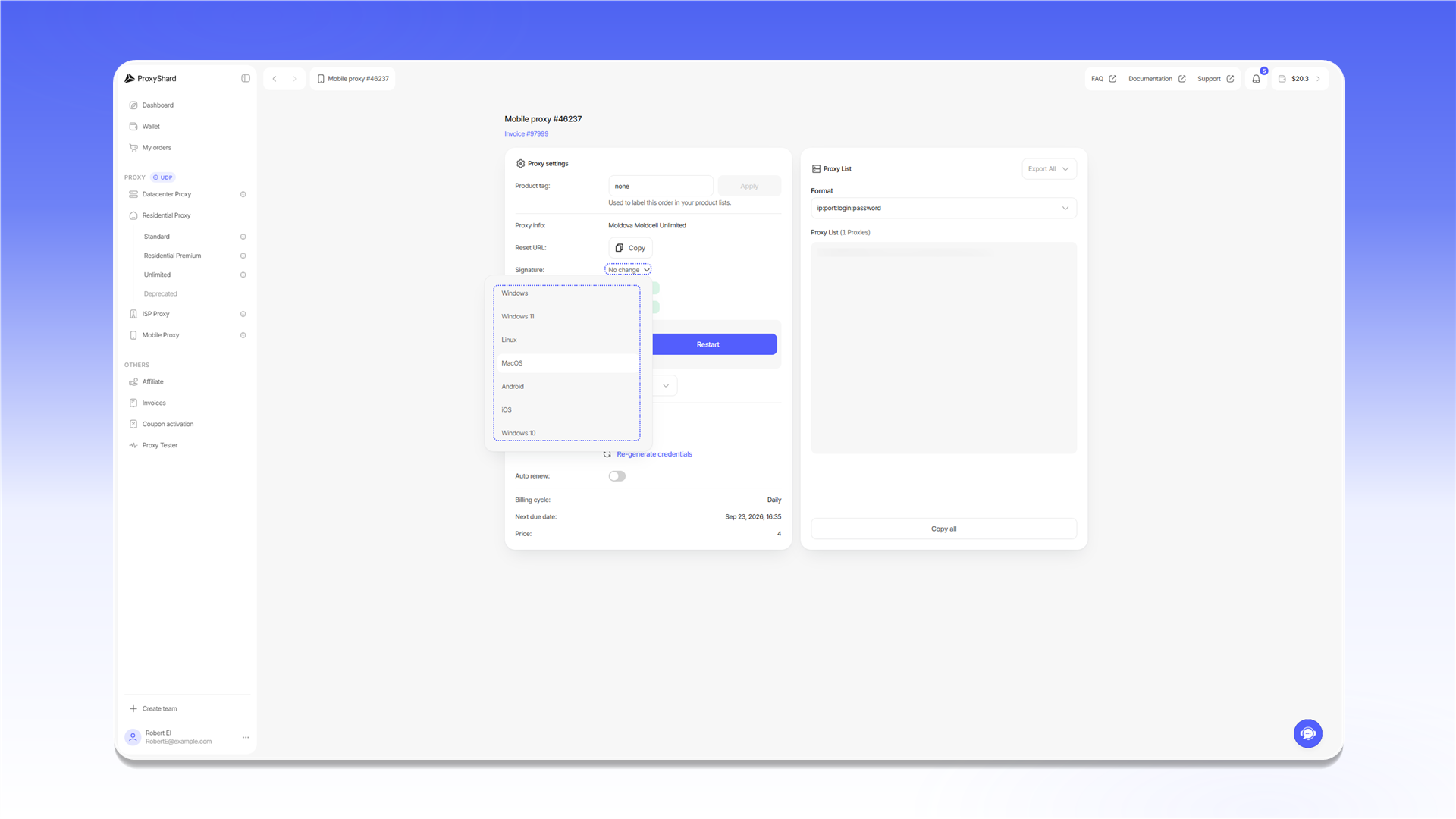
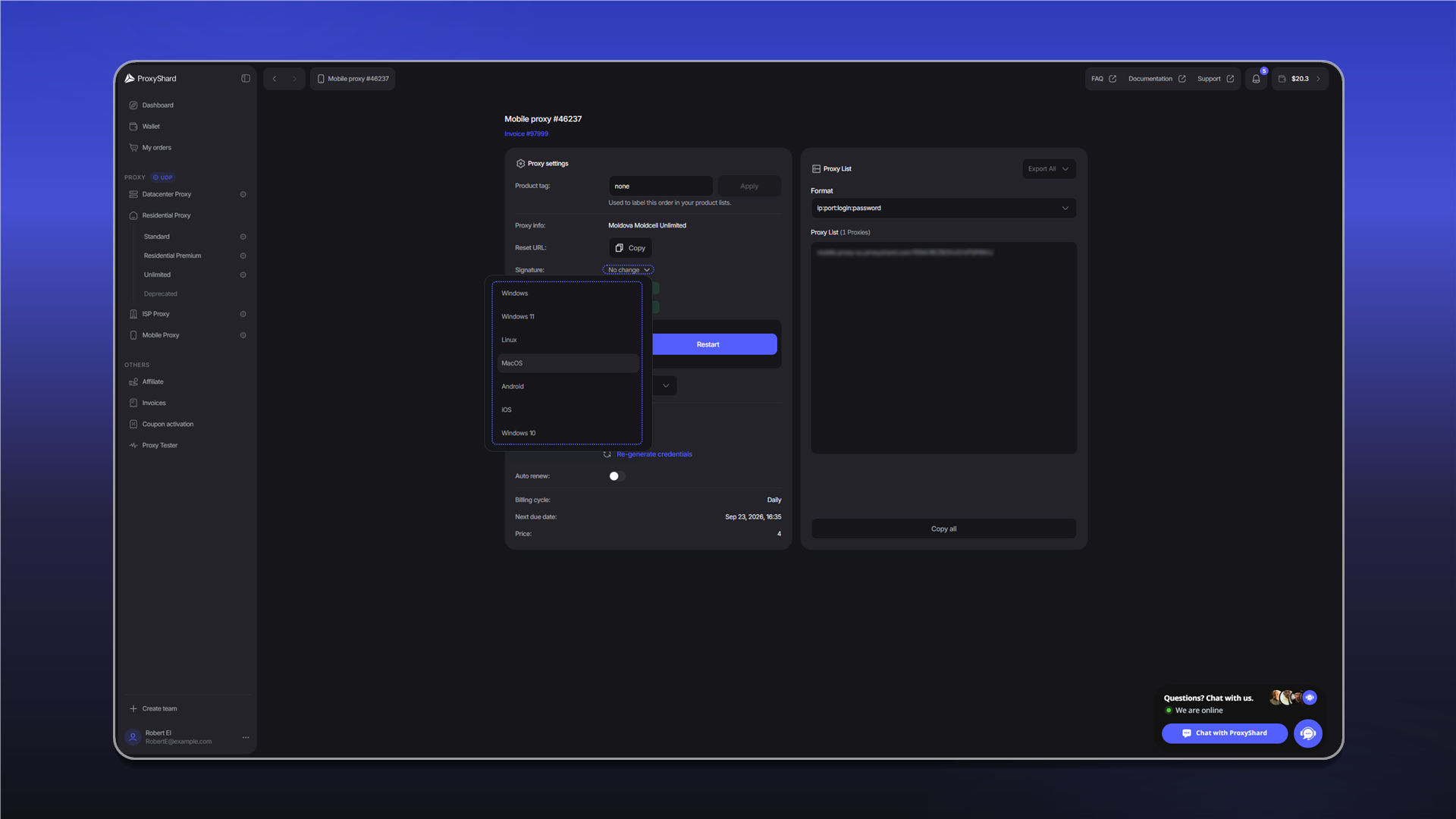
In the Signature field, select the OS whose fingerprint the proxy should use. After changing the setting, restart the proxy with Restart.
Some Mobile proxy locations do not support p0f spoofing. See Limitations for the current list.
Premium Residential
For Premium Residential, the Device OS parameter filters the proxy pool by the device operating system. It filters the pool rather than spoofing the network fingerprint.
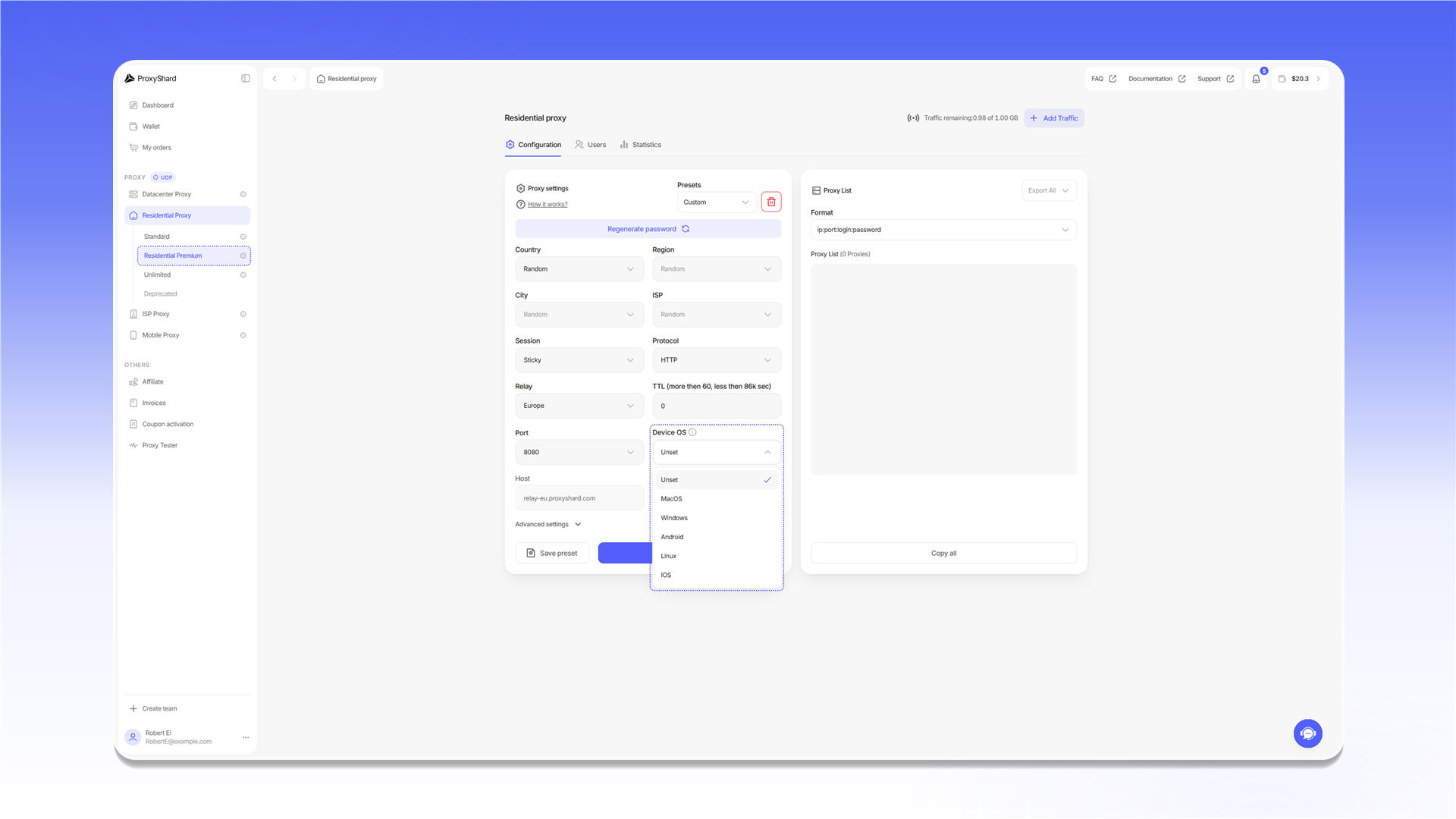
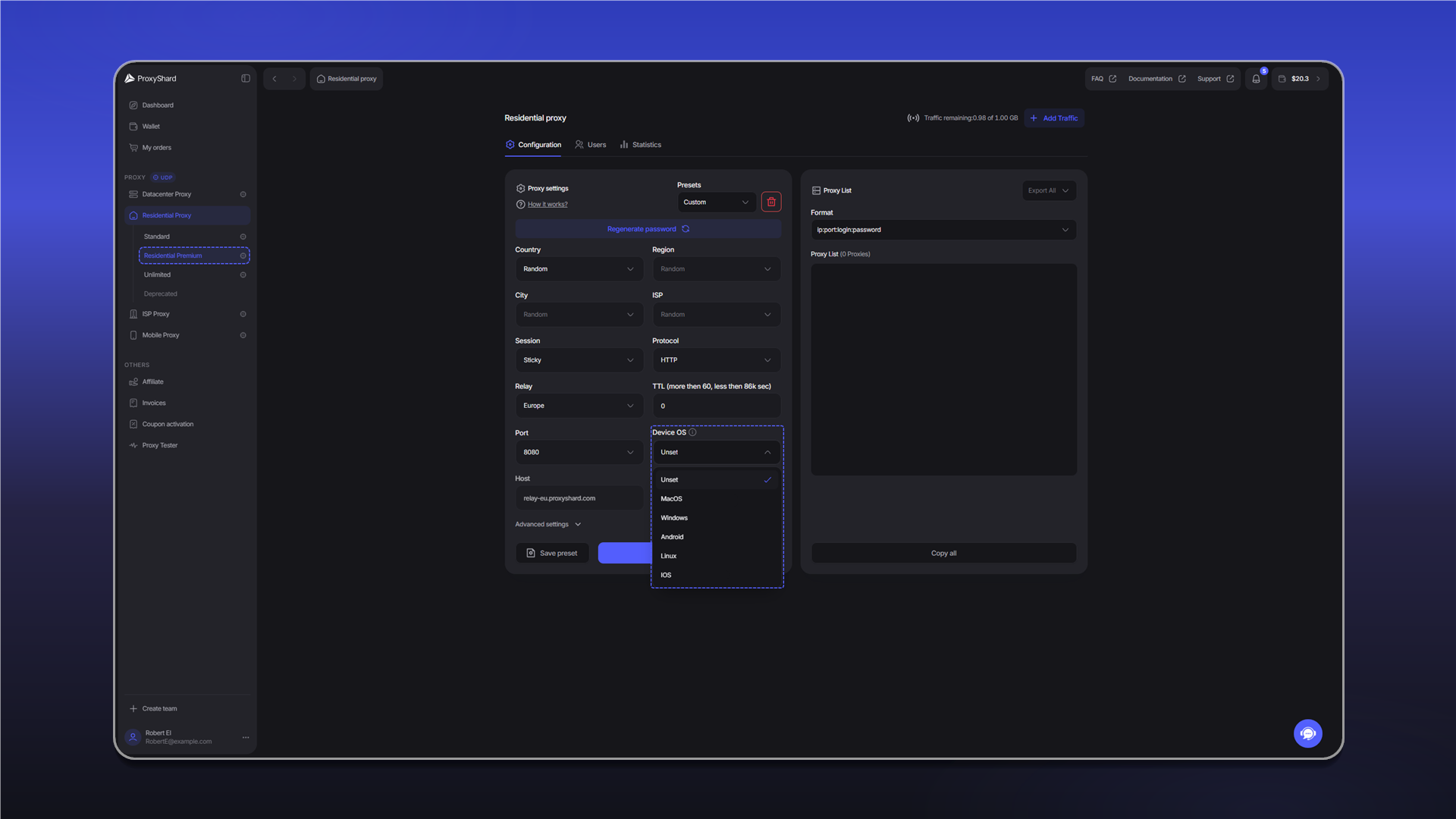
The availability of Device OS depends on the location. See Limitations for details.
Before changing p0f, close all connections through the proxy. Existing connections will continue to use the previous fingerprint and may prevent the new setting from taking effect. After changing p0f, wait 2-3 minutes before reconnecting.
Real results
Initial tests show that p0f spoofing helps with anti-fraud checks. One confirmed scenario:
Google accounts: together with the developer of Vision Browser, we tested Google registration without changing the browser fingerprint. On a clean profile without p0f spoofing, the system immediately requests verification through a QR code. After setting the fingerprint to Windows 10 or Windows 11, the QR check no longer appears and Google offers phone-number verification instead. This shows that the mismatch between the browser and network fingerprints has been removed.
When registering a Google account on a desktop device, a mismatch between the browser and network fingerprints usually triggers QR-code verification. p0f spoofing helps align the network fingerprint with the selected operating system.
Recommended stack
For maximum results, we recommend using:
- Vision Browser, an antidetect browser with UDP support
- ProxyShard ISP proxies with p0f spoofing enabled
In this configuration, Vision Browser handles the browser fingerprint, p0f handles the network fingerprint, and the ISP proxy provides an IP address from a residential internet provider.
Where it is available
p0f spoofing and device filtering are available on the following products:
- Datacenter proxies
- ISP proxies
- Mobile proxies
- Premium Residential - device filtering through the Device OS parameter, without p0f spoofing
p0f spoofing is not available on some Mobile proxies. See the full list of restrictions on the Limitations page.
Last updated on