> For the complete documentation index, see [llms.txt](https://docs.proxyshard.com/llms.txt). Markdown versions of documentation pages are available by appending `.md` to page URLs; this page is available as [Markdown](https://docs.proxyshard.com/cn/site-navigation/teamspaces.md).

# 团队空间

团队功能可用于共享代理和订单访问权限、分配权限并在同一工作区中协作。一个账户最多可以创建 10 个团队。

## 打开 Teams

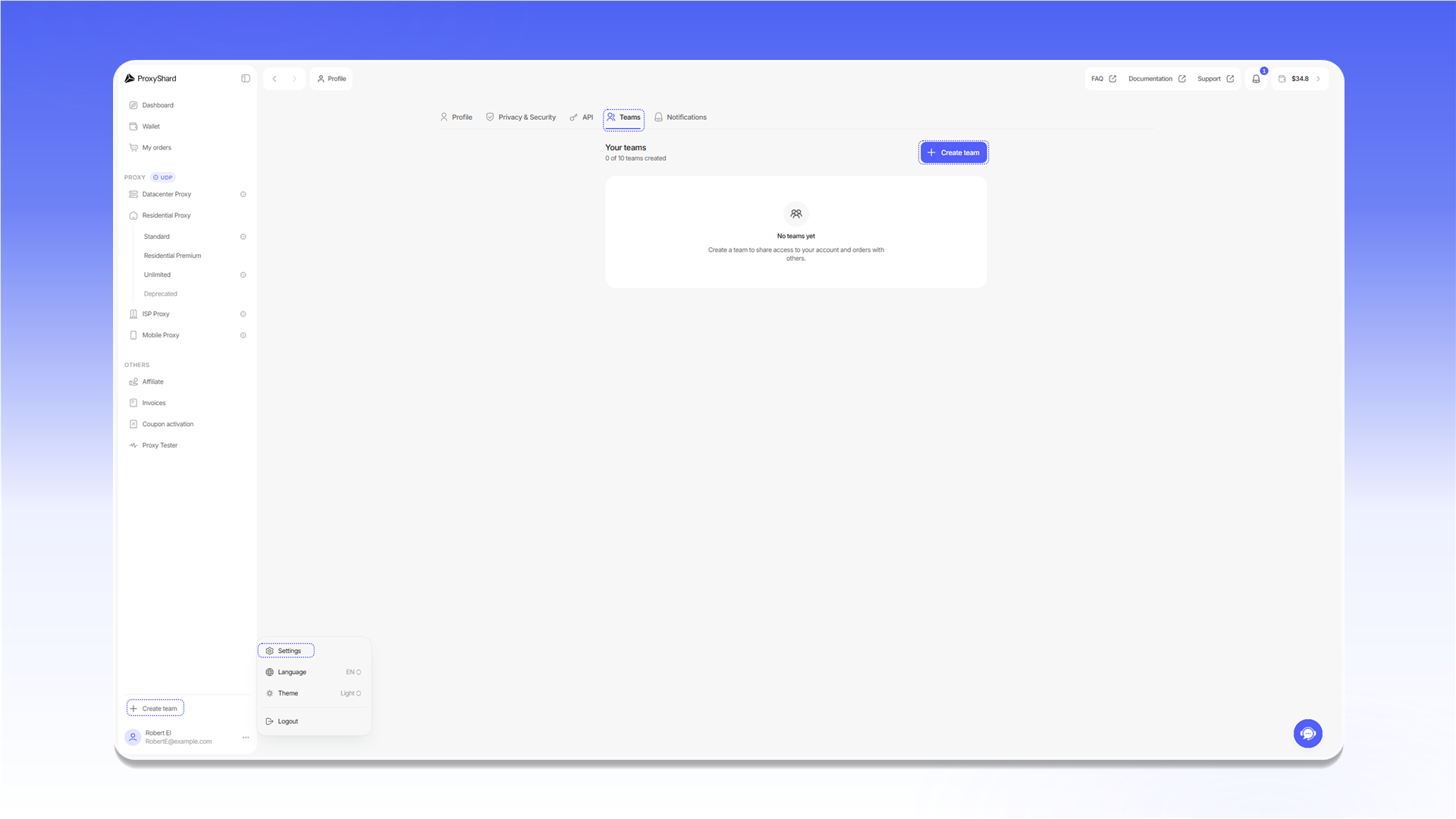
1. 点击左下角的个人资料图标。
2. 选择 `Settings`。
3. 打开 `Teams` 标签页。

<figure><picture><source srcset="/files/VaoRtxr6xurU2k4n73kB" media="(prefers-color-scheme: dark)"><img src="https://95104502-files.gitbook.io/~/files/v0/b/gitbook-x-prod.appspot.com/o/spaces%2Ffda88mDEz3gylRSkRkgF%2Fuploads%2Fgit-blob-8a920c4b1031271b425ed3a26c585dd2ff86c309%2Fteams-navigation_white.png?alt=media" alt="打开 Teams 页面"></picture><figcaption></figcaption></figure>

## 创建团队

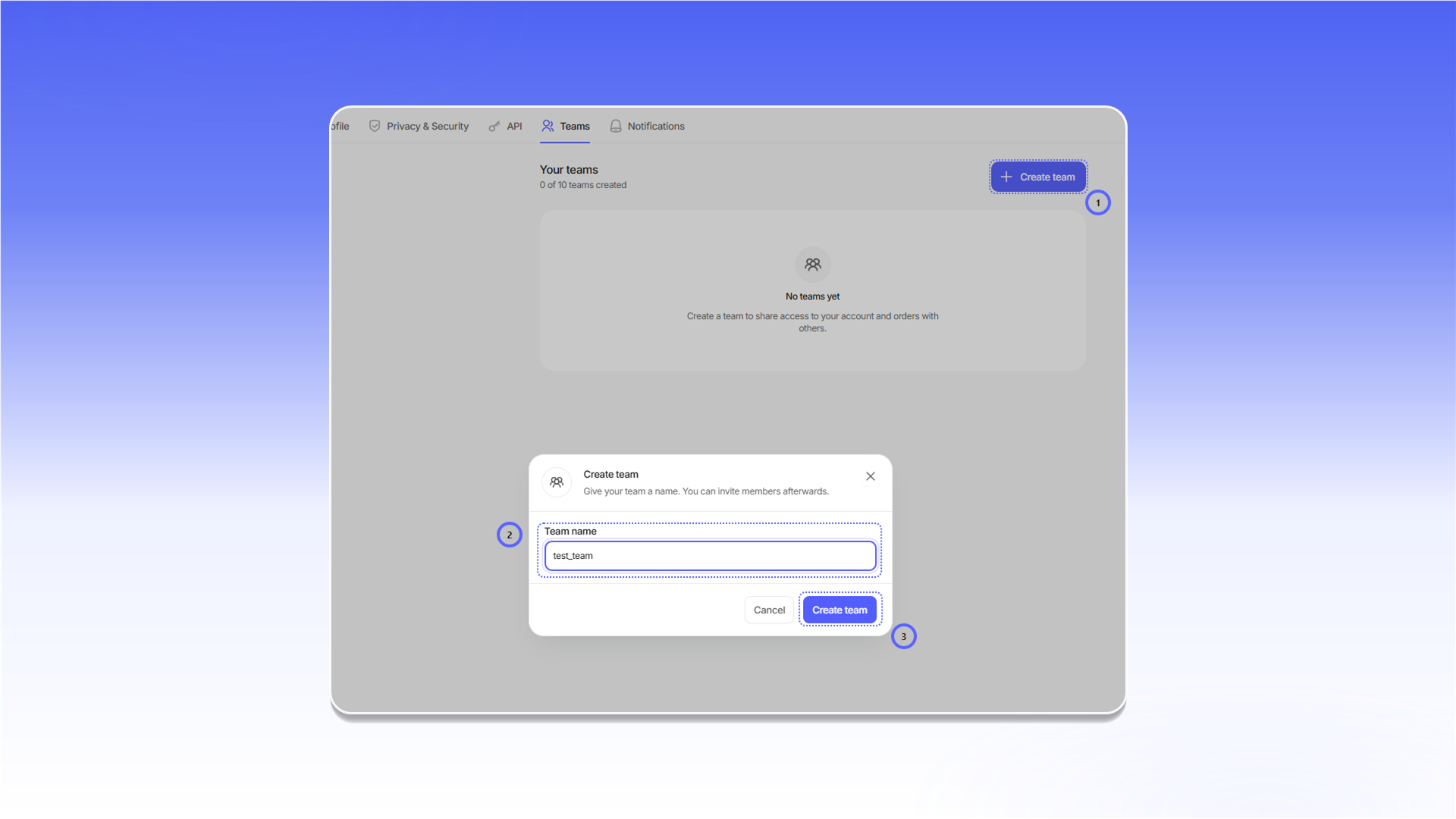
1. 点击 `Create team`。
2. 在 `Team name` 中输入团队名称。
3. 在创建窗口中点击 `Create team`。

<figure><picture><source srcset="/files/k1O8PB0q1AjK4AoVdRer" media="(prefers-color-scheme: dark)"><img src="https://95104502-files.gitbook.io/~/files/v0/b/gitbook-x-prod.appspot.com/o/spaces%2Ffda88mDEz3gylRSkRkgF%2Fuploads%2Fgit-blob-79ff4c5e94f93d4eea76da7a50b26ad214b43535%2Fteam-create_white.png?alt=media" alt="创建团队"></picture><figcaption></figcaption></figure>

## 切换团队

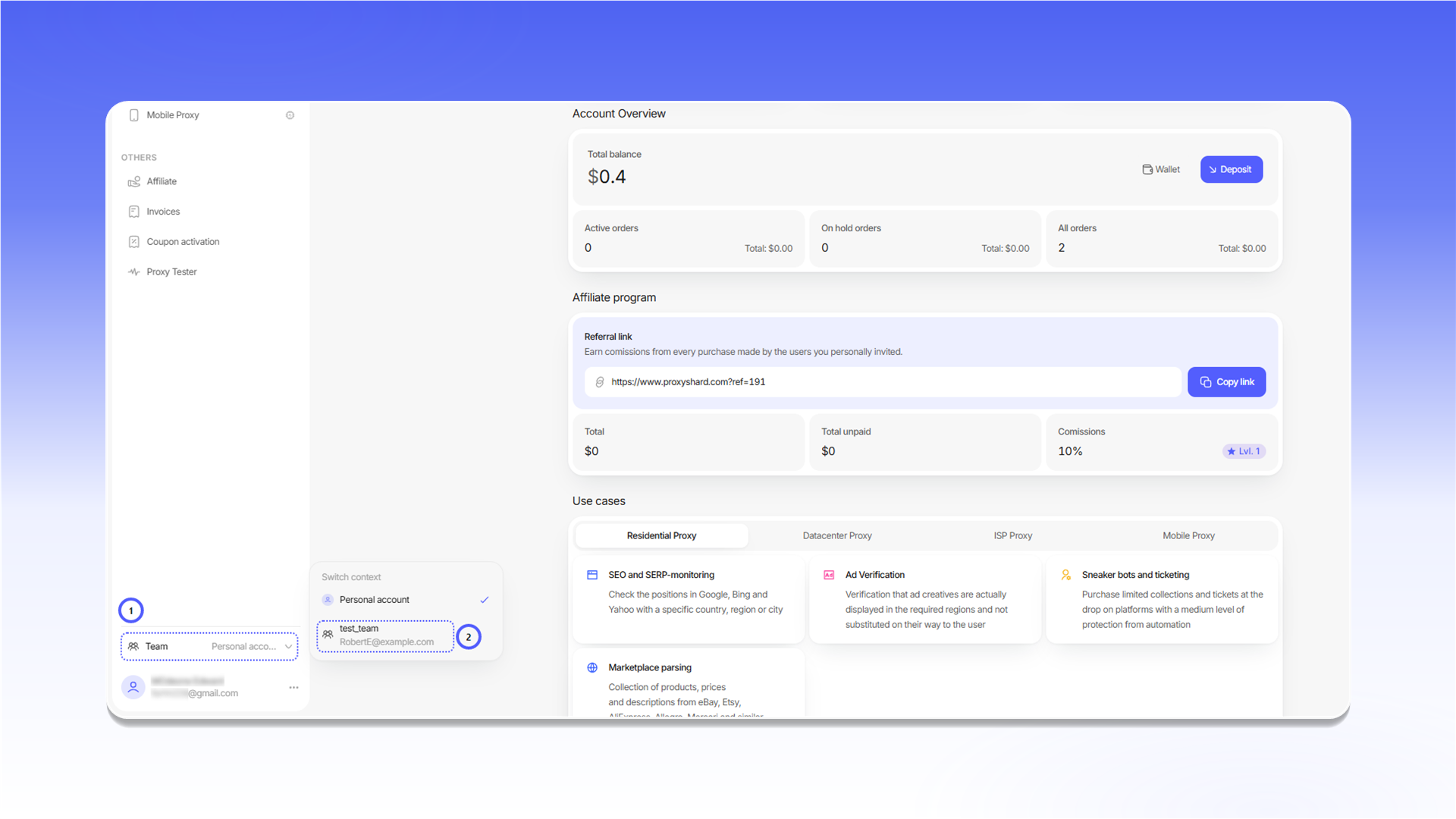
打开左下角的账户菜单，选择 `Team`，然后选择目标团队。切换后，界面会显示该团队可访问的订单和功能。

<figure><picture><source srcset="/files/WNeyhvJpxst8M1fnoSsO" media="(prefers-color-scheme: dark)"><img src="https://95104502-files.gitbook.io/~/files/v0/b/gitbook-x-prod.appspot.com/o/spaces%2Ffda88mDEz3gylRSkRkgF%2Fuploads%2Fgit-blob-b34302695ed7ddce61b048d39ce807f752edabfe%2Fteam-switch_white.png?alt=media" alt="切换当前团队"></picture><figcaption></figcaption></figure>

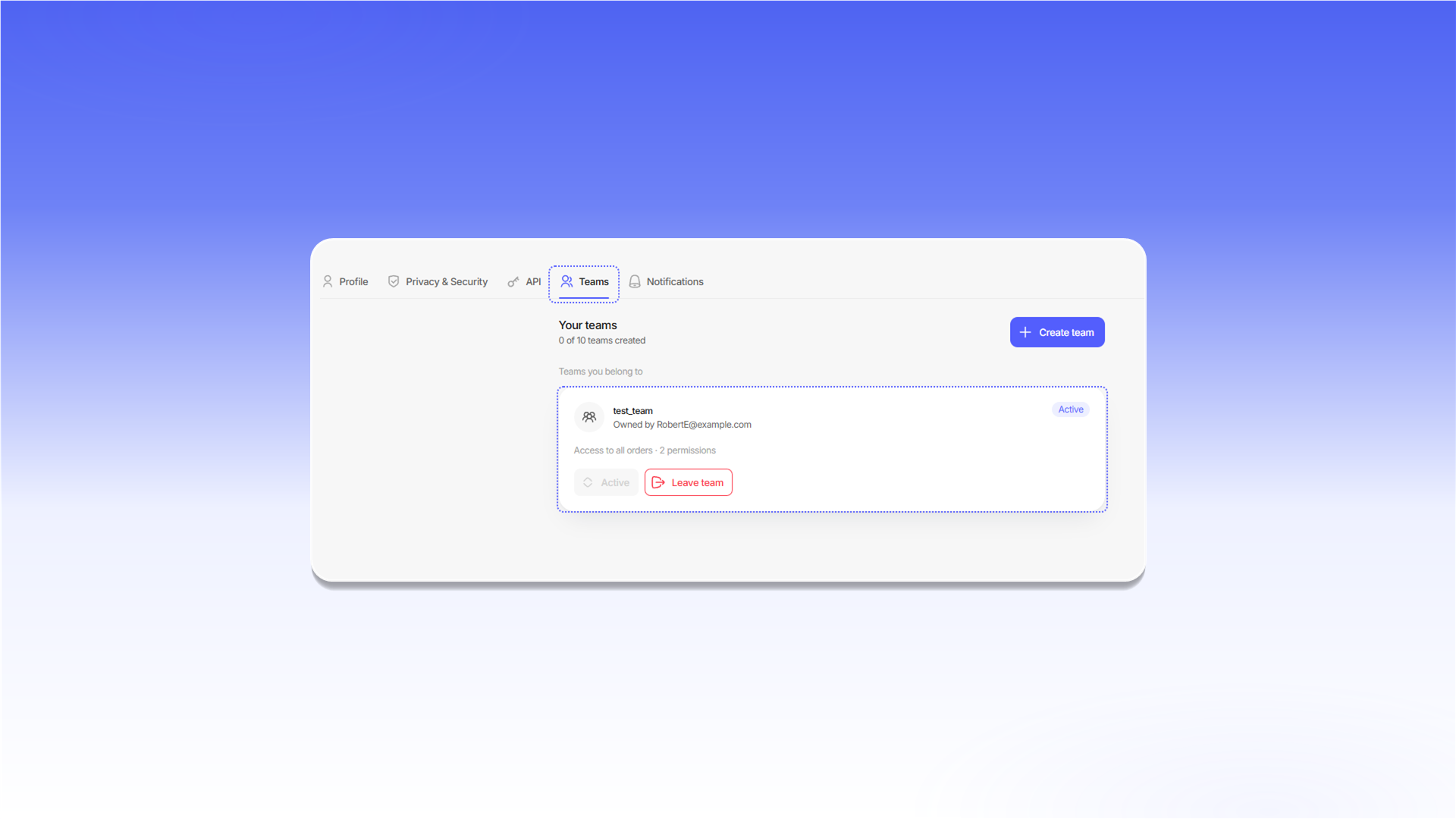
您加入的团队会显示在 `Teams you belong to` 中。当前团队标记为 `Active`。如需退出团队，请点击 `Leave team`。

<figure><picture><source srcset="/files/khXLqr2fjmqYu0DoPFZc" media="(prefers-color-scheme: dark)"><img src="https://95104502-files.gitbook.io/~/files/v0/b/gitbook-x-prod.appspot.com/o/spaces%2Ffda88mDEz3gylRSkRkgF%2Fuploads%2Fgit-blob-334aaa974e7ece1c66b5021fd2acb7811e88c385%2Fteam-membership_white.png?alt=media" alt="用户已加入的团队"></picture><figcaption></figcaption></figure>

## 团队设置

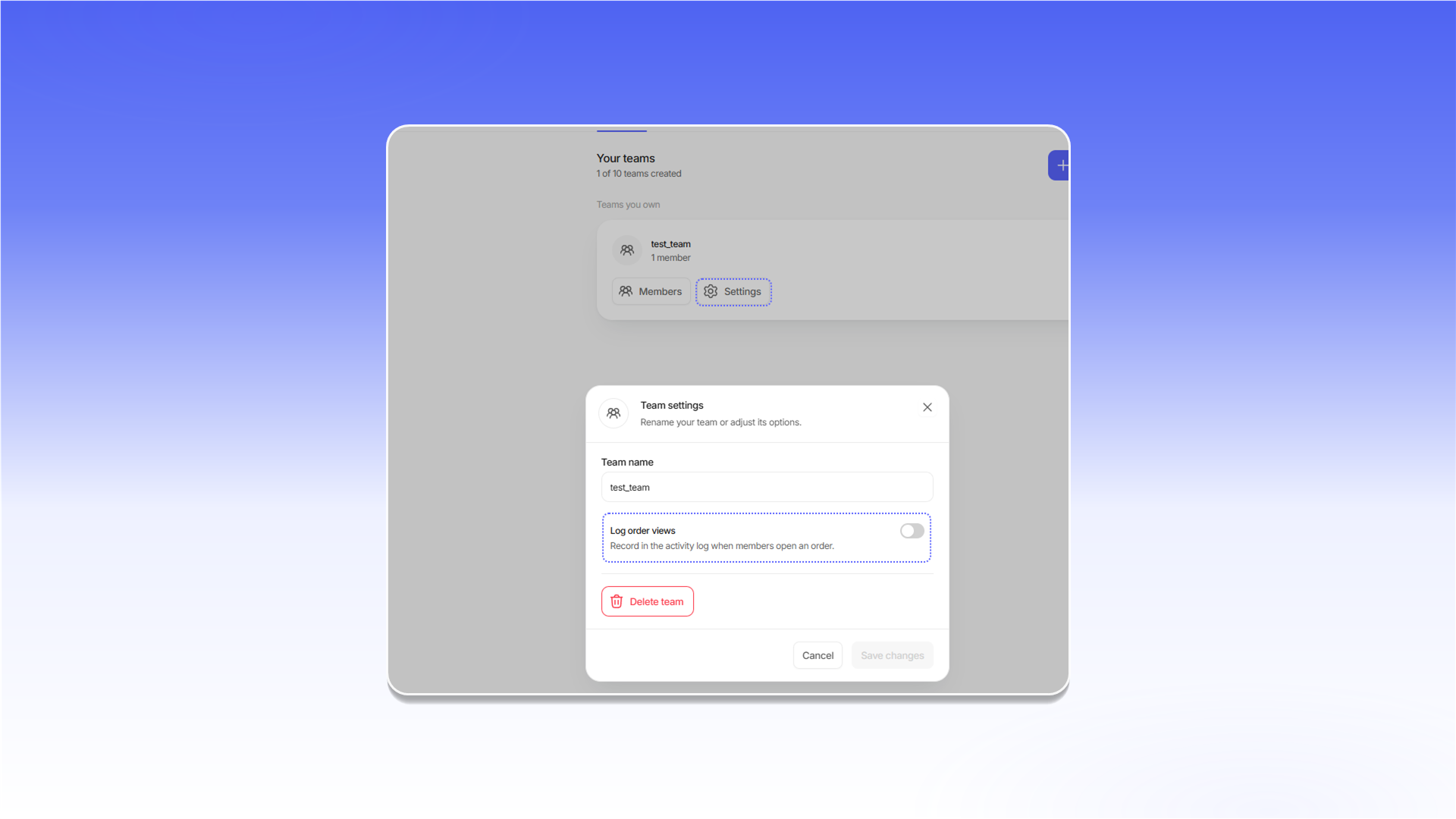
团队所有者可以在团队卡片中打开 `Settings`，修改 `Team name`、启用 `Log order views` 或删除团队。更改设置后点击 `Save changes`。

<figure><picture><source srcset="/files/eWHpnJ8dNgbNVSBxrSlM" media="(prefers-color-scheme: dark)"><img src="https://95104502-files.gitbook.io/~/files/v0/b/gitbook-x-prod.appspot.com/o/spaces%2Ffda88mDEz3gylRSkRkgF%2Fuploads%2Fgit-blob-3e92a97c5e25ec33df304a98a3c4356ec85f905b%2Fteam-settings_white.png?alt=media" alt="团队设置"></picture><figcaption></figcaption></figure>

## 添加成员

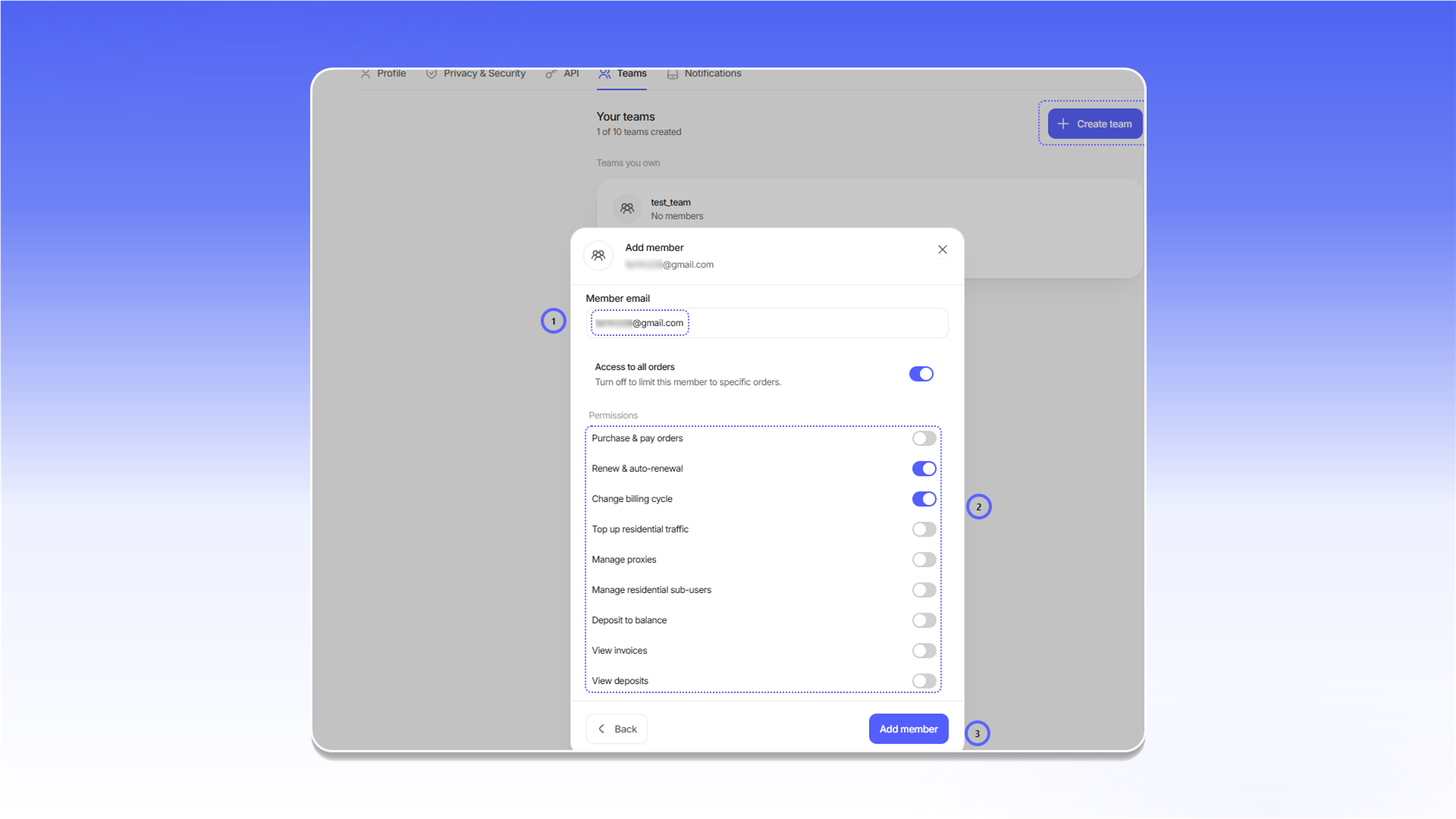
在自己的团队卡片中打开 `Members`，然后点击 `Add member`。接着：

1. 在 `Member email` 中输入电子邮件地址。
2. 设置订单访问权限和所需操作权限。
3. 点击 `Add member`。

<figure><picture><source srcset="/files/NruZRvwjslyI1yQWVkiY" media="(prefers-color-scheme: dark)"><img src="https://95104502-files.gitbook.io/~/files/v0/b/gitbook-x-prod.appspot.com/o/spaces%2Ffda88mDEz3gylRSkRkgF%2Fuploads%2Fgit-blob-57517108db81da6b9103133e8dd3216b778a5369%2Fteam-add-member_white.png?alt=media" alt="添加成员并设置权限"></picture><figcaption></figcaption></figure>


---

# Agent Instructions
This documentation is published with GitBook. GitBook is the documentation platform designed so that both humans and AI agents can read, navigate, and reason over technical content effectively. Learn more at gitbook.com.

## Querying This Documentation
If you need additional information that is not directly available in this page, you can query the documentation dynamically by asking a question.

Perform an HTTP GET request on the current page URL with the `ask` query parameter, and the optional `goal` query parameter:

```
GET https://docs.proxyshard.com/cn/site-navigation/teamspaces.md?ask=<question>&goal=<endgoal>
```

`ask` is the immediate question: it should be specific, self-contained, and written in natural language.
`goal` is optional and describes the broader end goal you are ultimately trying to accomplish on behalf of the user. GitBook uses it to tailor the answer towards what is most useful for that goal.

The response will contain a direct answer to the question and relevant excerpts and sources from the documentation.

Use this mechanism when the answer is not explicitly present in the current page, you need clarification or additional context, or you want to retrieve related documentation sections.